Backups
Backups keep copies of your servers, volumes and buckets on a schedule, so you can get them back when data is lost, corrupted or deleted. The copies are stored off-site, in Bucharest, away from the resources they protect.
You find everything under Backups in the left sidebar of the console, for every project. Open the backup portal, at the top of the section, opens the full Backup Service console in a new tab, already signed in.
How it works
- Plan: says what is protected and how. A plan holds one kind of resource: servers, volumes or buckets.
- Service level: how often backups run, how many are kept and for how long. Service levels are set by Cloudify.ro and are the same for every plan on the level; you pick one when you create a plan.
- Restore point: one backup of one resource, taken at a moment in time. You restore from a restore point.
- Activity: every backup, restore, verification and expiry the platform runs for you, with its log.
Backing up a server takes every disk attached to it: the root disk and its volumes. You do not need a separate plan for the volumes of a protected server.
The Protection tab
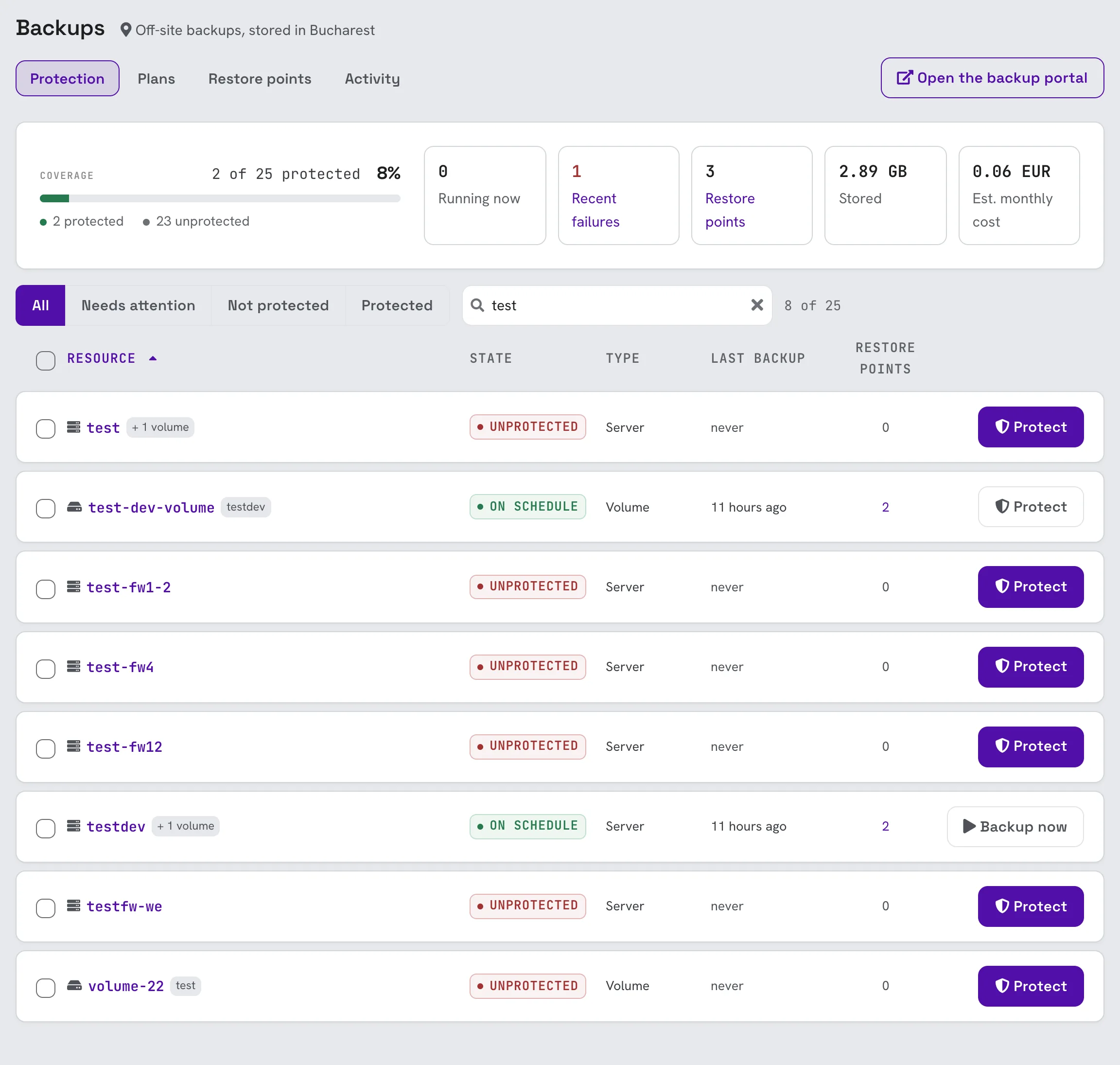
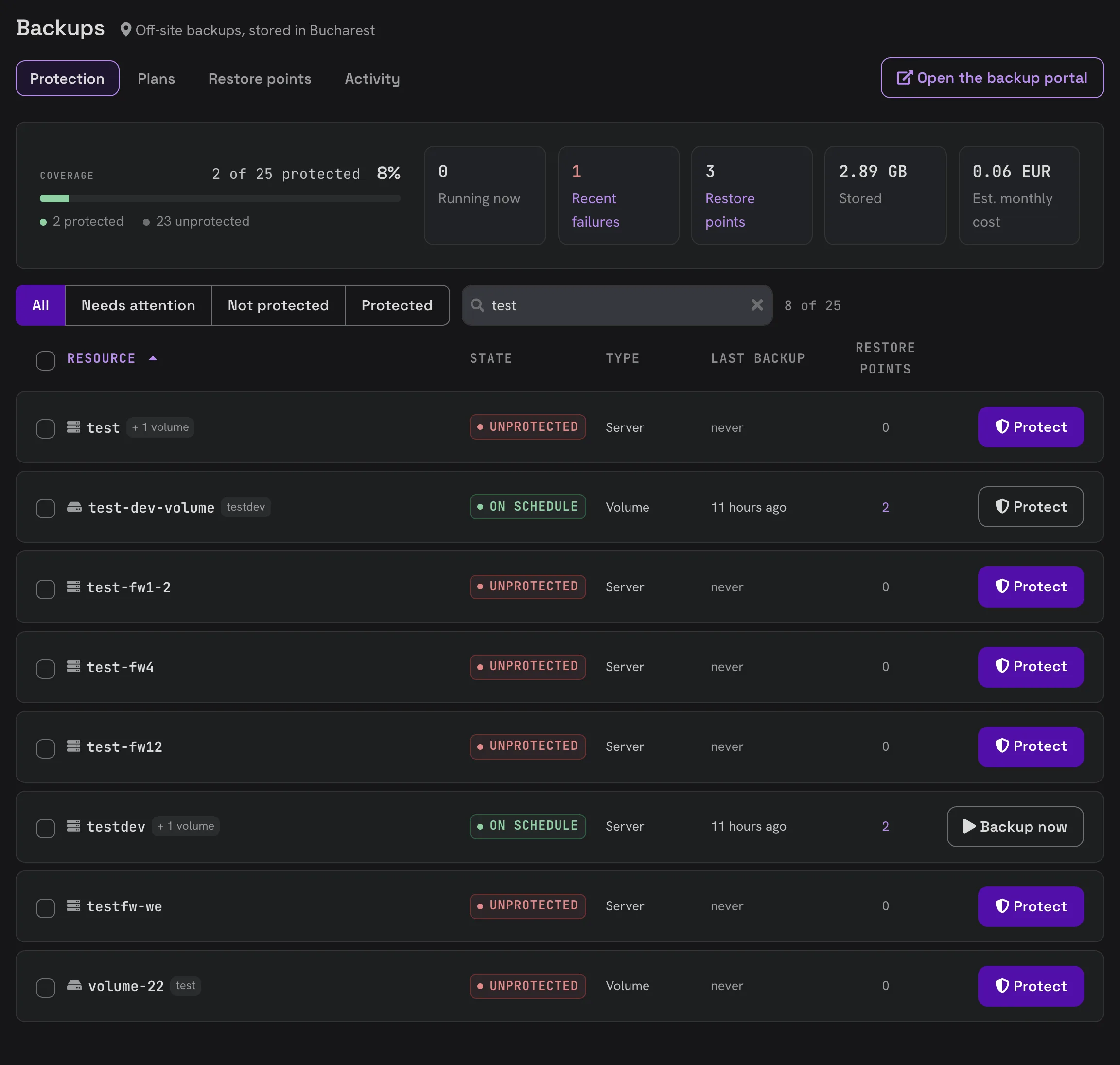
The Protection tab is the starting point. It shows how much of the project is protected and what needs your attention.
At the top:
- Coverage: how many of the project's servers, volumes and buckets are protected.
- Running now: backups and restores in progress.
- Recent failures: jobs that failed recently. Click to see them in Activity.
- Restore points: how many restore points the project holds.
- Stored: the space your backups actually take.
- Est. monthly cost: what that space costs a month.
Below is every resource in the project with its state, type, last backup and number of restore points. Use the filters (All, Needs attention, Not protected, Protected) or the search box to narrow the list. Click a resource name to open its backup page.
Each row ends with the action that fits it: Protect for a resource with no plan, Backup now for a protected one.
Protection states
| State | Meaning |
|---|---|
| On schedule | Protected, and the newest backup is as recent as the plan promises. |
| First backup due | Protected, and the first backup has not run yet. |
| Paused | The plan protecting it is paused, so nothing is being backed up. |
| Overdue | The newest backup is older than the plan's schedule allows. |
| Failing | The plan could not back it up, or its newest restore point is broken. |
| Unprotected | No plan covers it. |
A volume attached to a protected server shows the state of that server's backups.
A resource's backup page
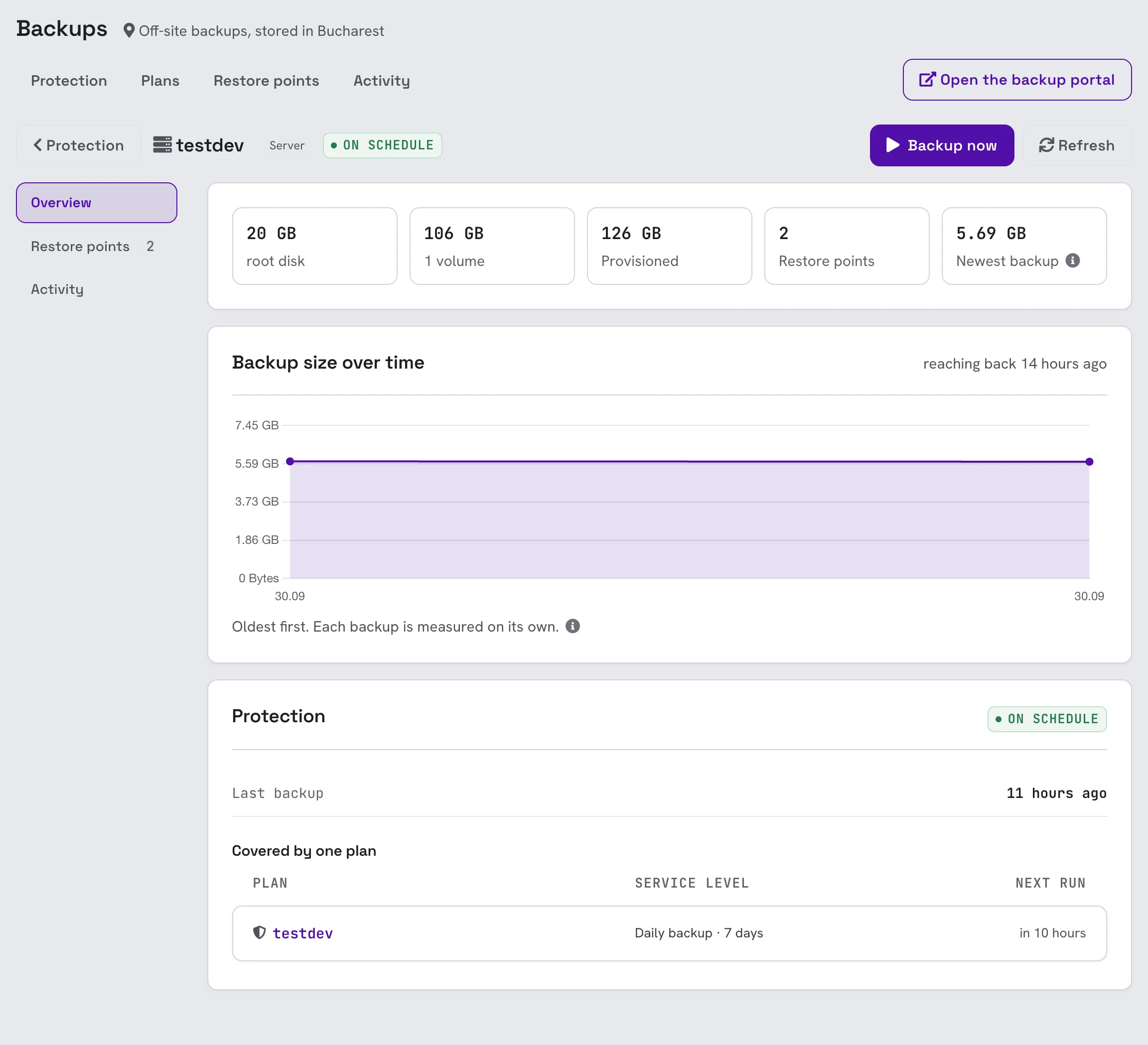
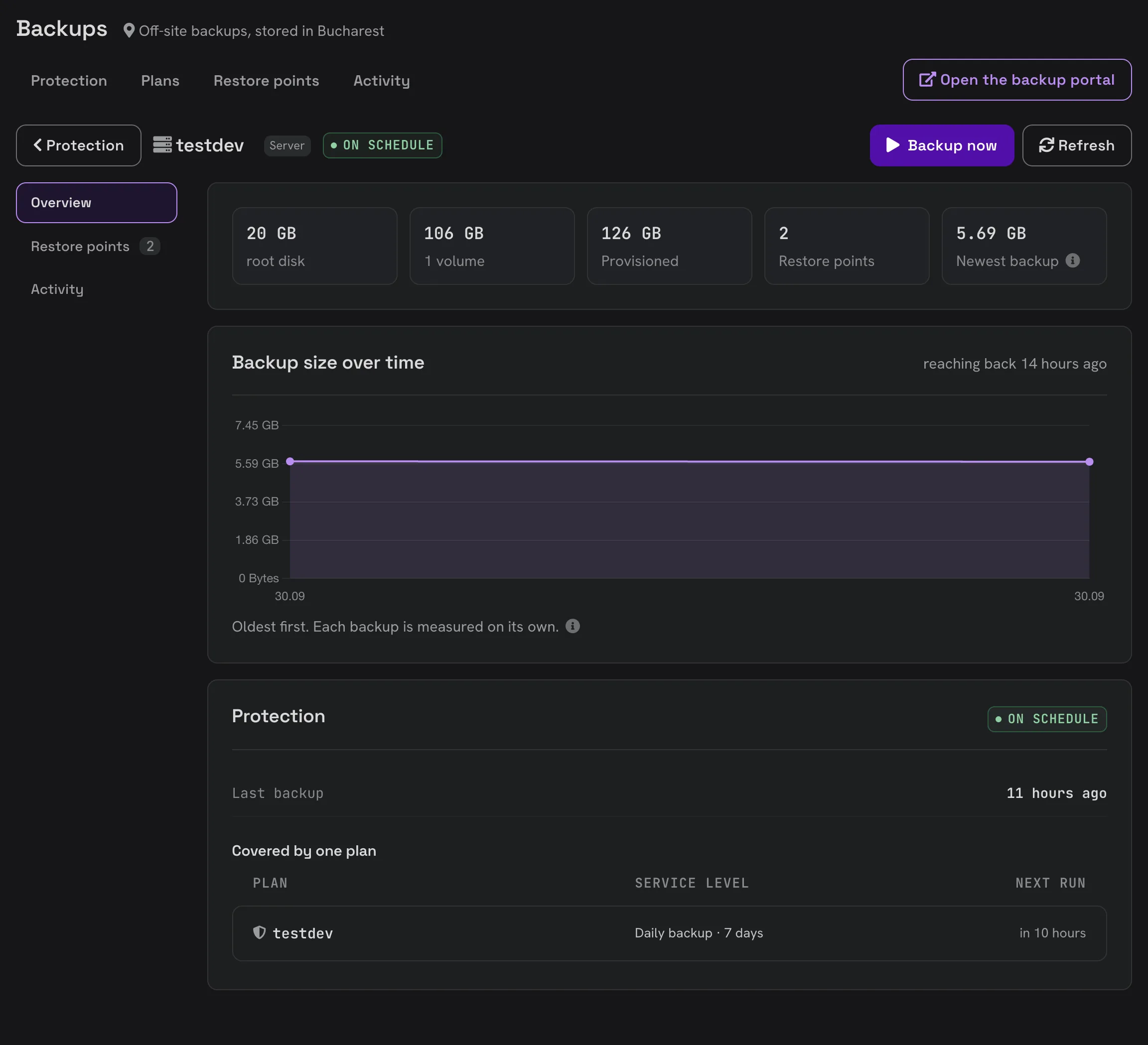
Click a resource on the Protection tab to open its own page: its disks and their size, how the size of its backups changes over time, the plans covering it, its restore points and everything that has run against it.
Backups on server, volume and bucket pages
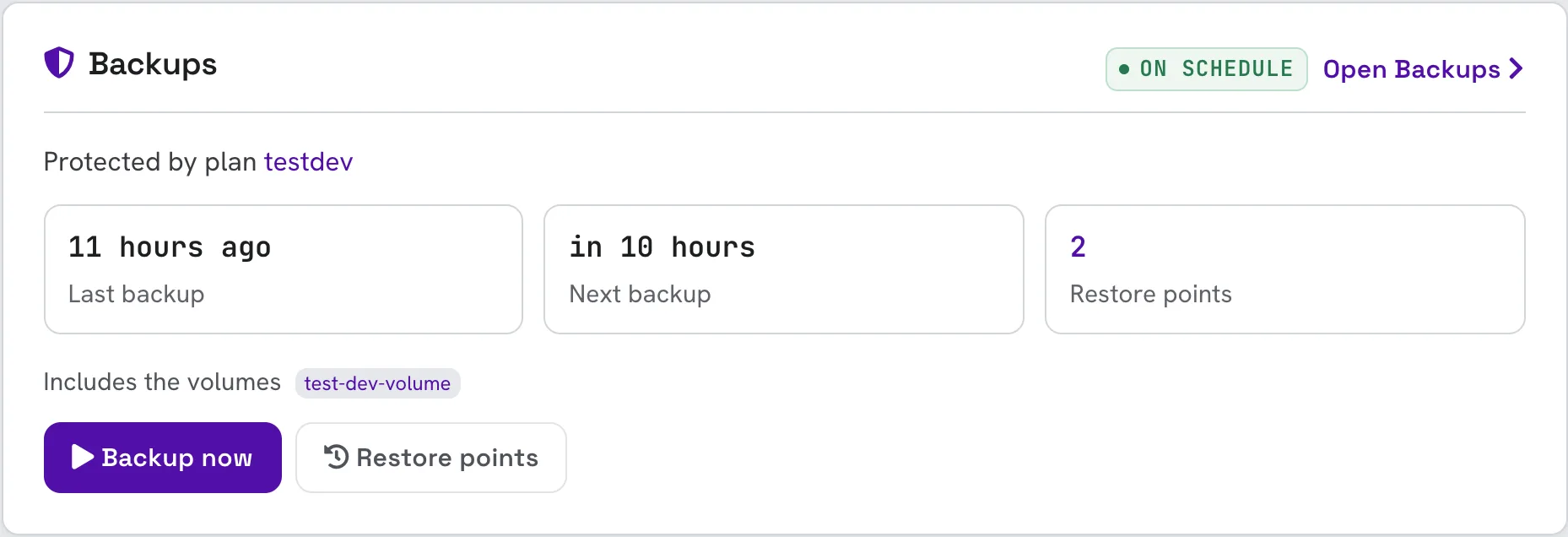
The Backups card on the overview page of every server and volume, and on the Backup tab of every bucket, shows the same information in one place: the plan protecting it, the last and the next backup, and how many restore points it has. From there you can start a backup, protect the resource or open its restore points.
Billing
Backups are billed on the space they actually take, not on the size of your disks. Data is compressed, and whatever does not change between two backups is stored only once, so a month of daily backups takes far less than thirty copies of the disk. The rate per GB a month is shown on the plan form before you create a plan, and the current estimate is on the Protection tab.
A restore point stops being billed as soon as it is deleted or expires.
Limits
A project can have limits on how much it protects and stores. When a limit is reached you cannot add new plans, resources or on-demand backups until you are back under it, but backups that are already scheduled keep running. Deleting restore points you no longer need frees space.