Protect servers, volumes and buckets
A resource is protected once a backup plan covers it. A plan holds one kind of resource (servers, volumes or buckets) and runs on one service level.
Create a plan
You can start a plan in three ways:
- On the Protection tab, click Protect on the row of a resource.
- On the Protection tab, tick several resources of the same kind and click Protect N resources.
- On the Plans tab, click New plan.
The plan form has three steps.
1. What to protect
Choose Servers, Volumes or Buckets, then tick the resources this plan covers. Use the search box to find them; Select all matches selects only what the search currently shows.
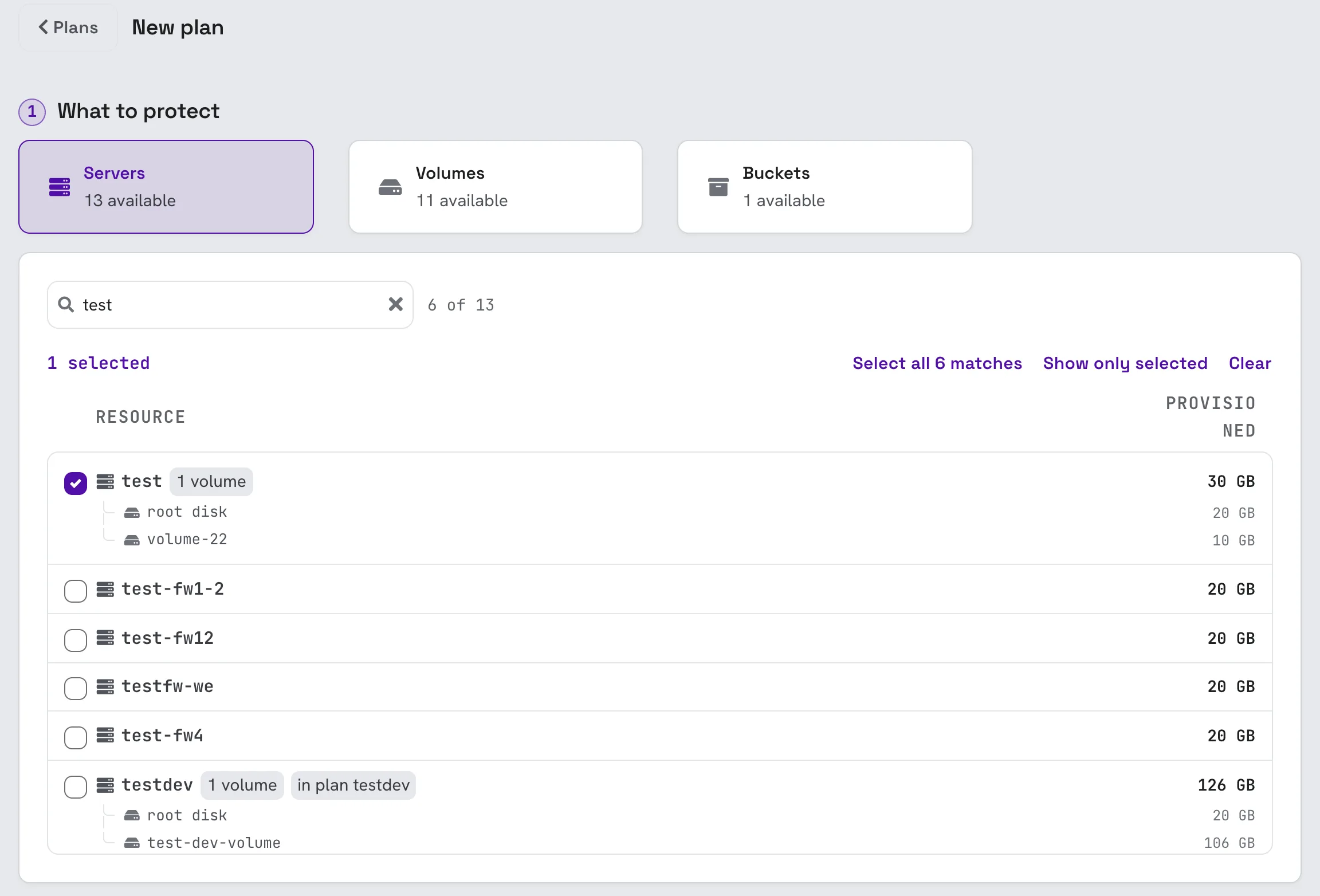
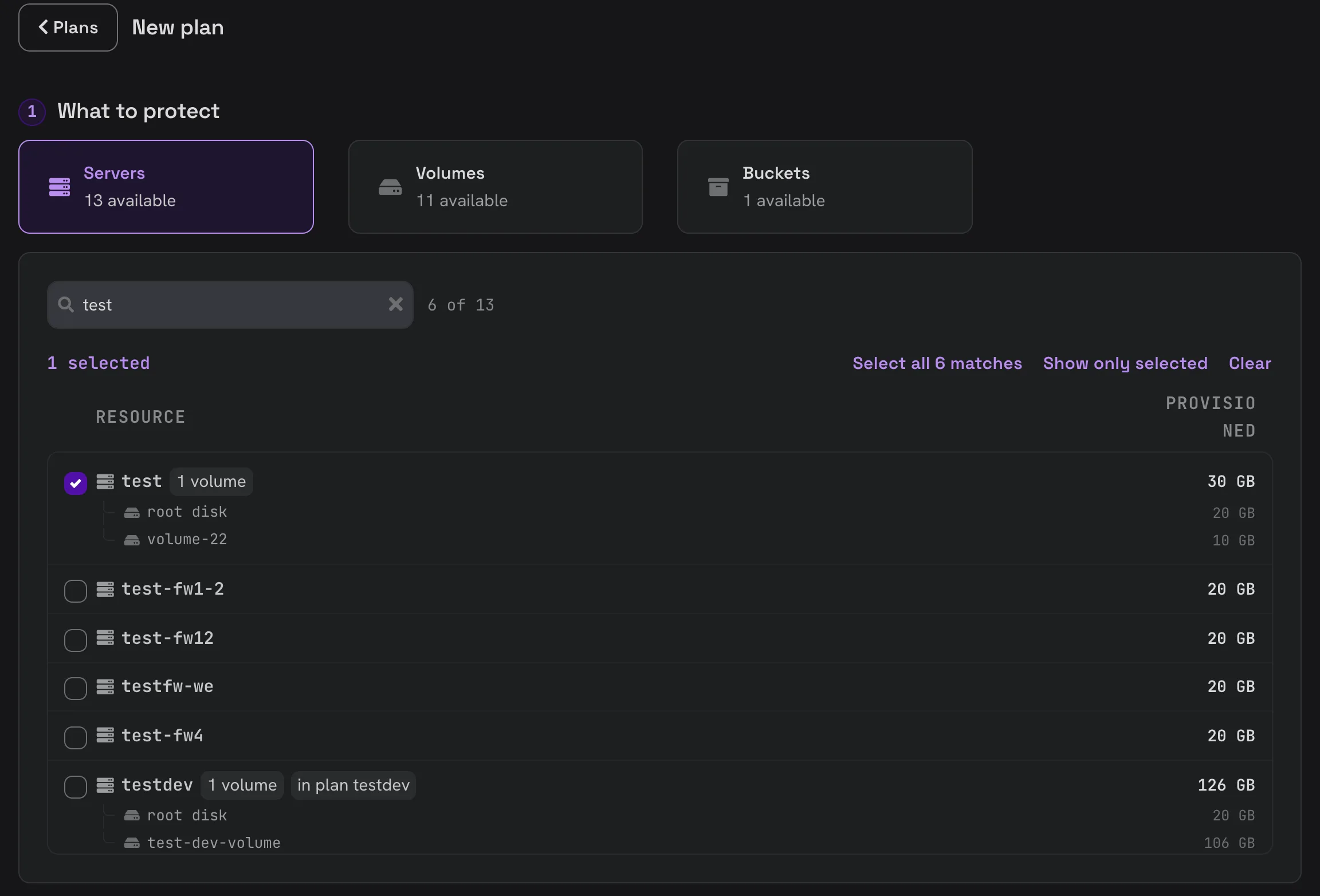
Each server lists the disks that come along with it (its root disk and attached volumes) and the provisioned size. A chip such as in plan testdev tells you the resource is already covered by another plan.
Protect the server rather than its volumes. A server backup already includes every volume attached to it. If a volume also has a plan of its own, its data is stored, and billed, twice.
2. How it is protected
Pick a service level. Each tile says how often backups run, how long they are kept and how many of each kind are kept. For example:
- Daily backup · 7 days: one backup every night, the last 7 kept.
- Weekly backup · 6 months: one backup a week, with monthly backups kept for 6 months.
The levels offered depend on the kind of resource and on your project. Backups run at night, each resource at its own time, so not everything is copied at once.
3. Name and options
- Plan name: optional. Left empty, the plan is named after its first resource.
- Freeze before backup: shown only when the service level lets you choose. A freeze pauses the server for about a second so that everything is written to disk before the backup reads it (filesystem-consistent). If your workload cannot take the pause, choose crash-consistent instead.
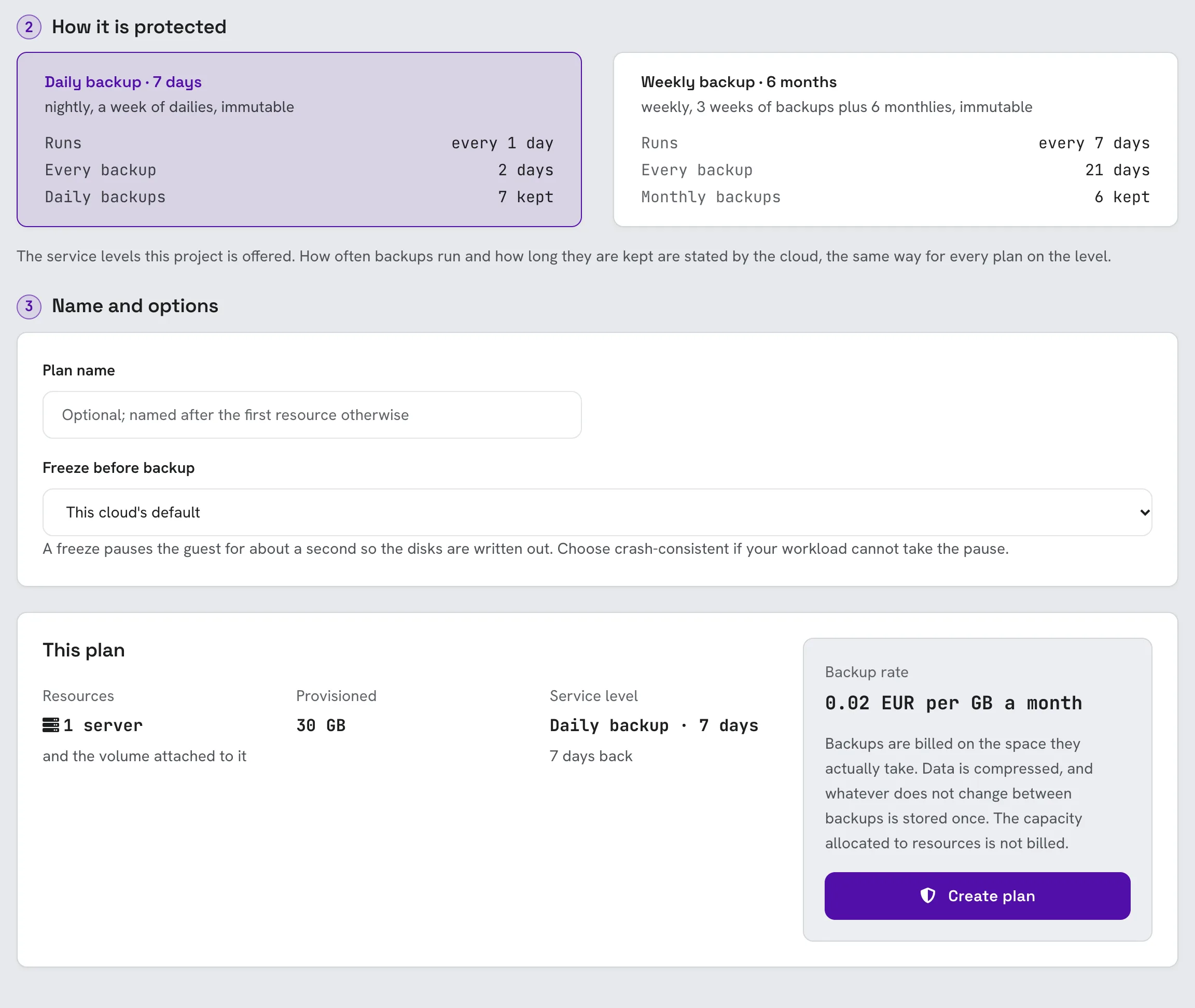
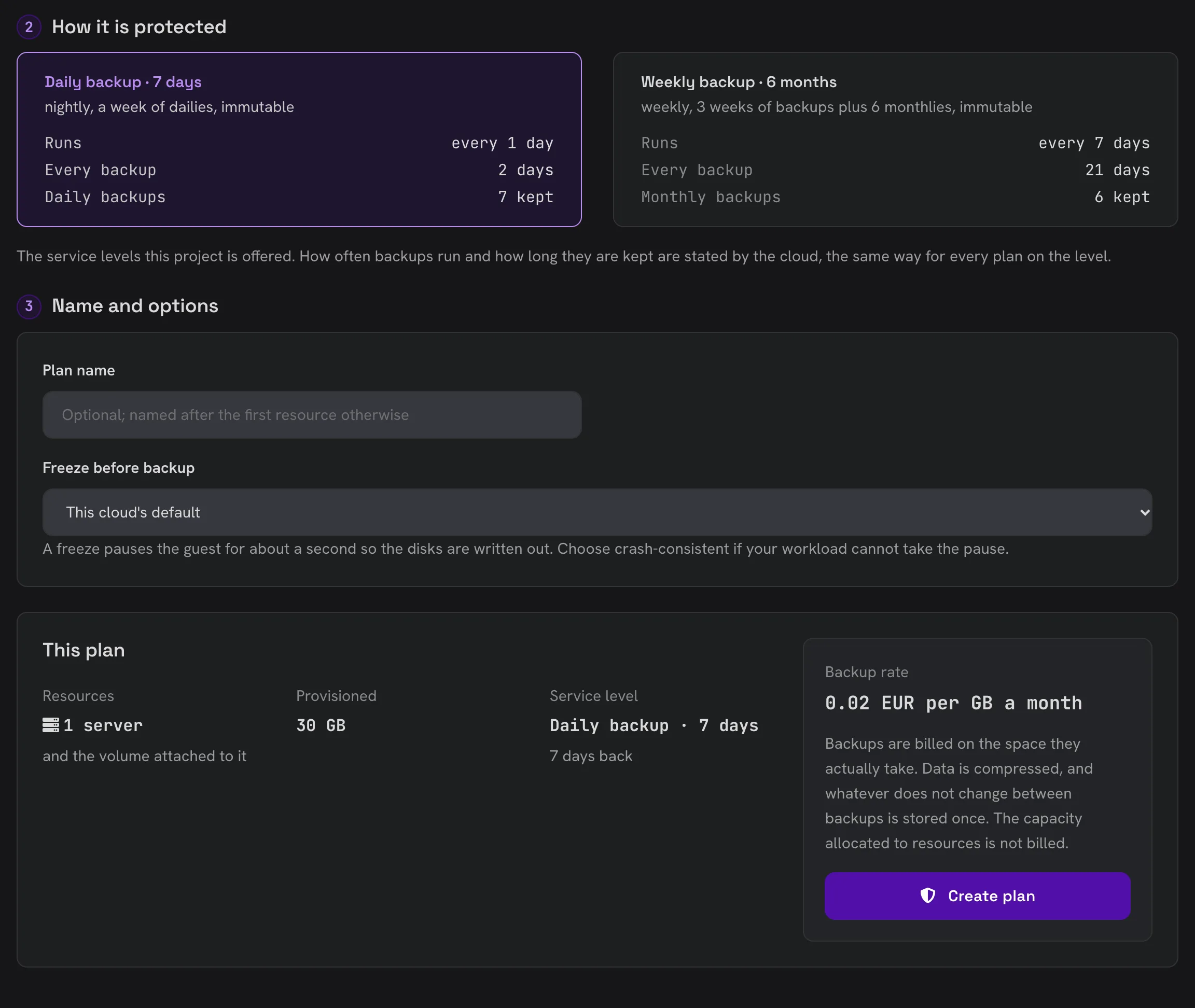
The This plan summary repeats what you chose, the provisioned size it covers and the backup rate. Click Create plan. The first backup runs at the next scheduled time; use Backup now if you want one straight away.
Manage plans
The Plans tab lists every plan with its service level, last backup and next run.
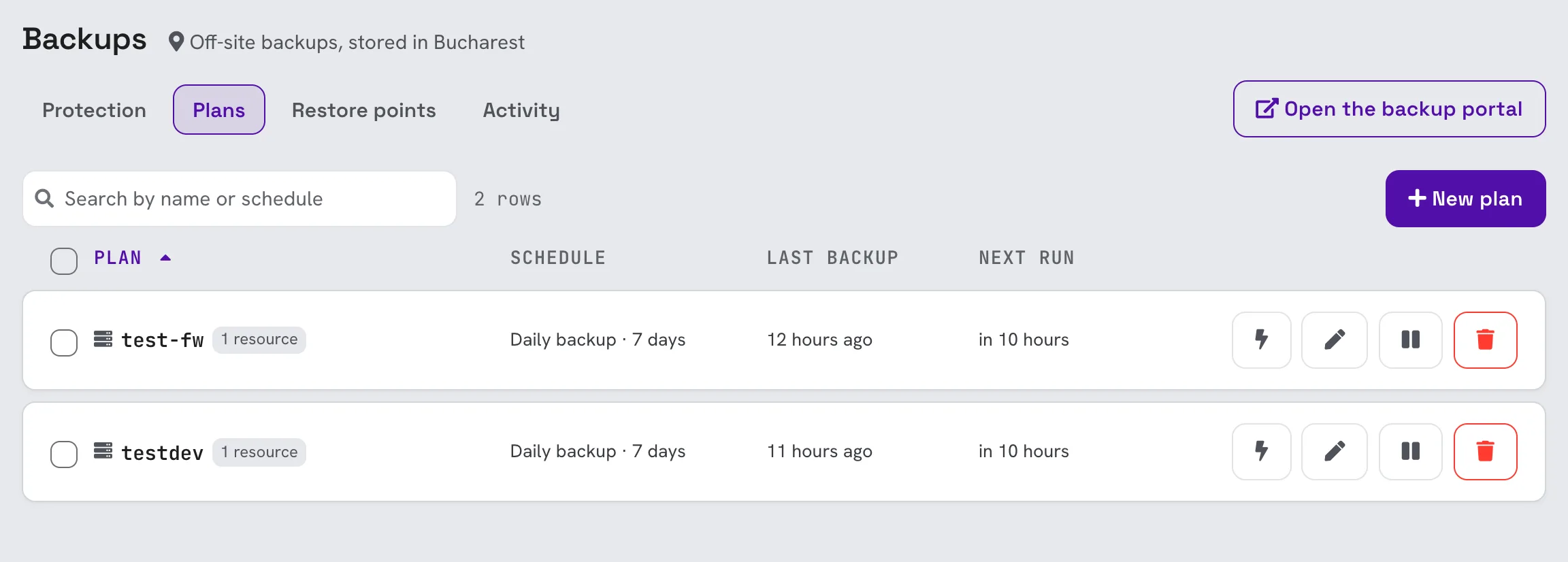
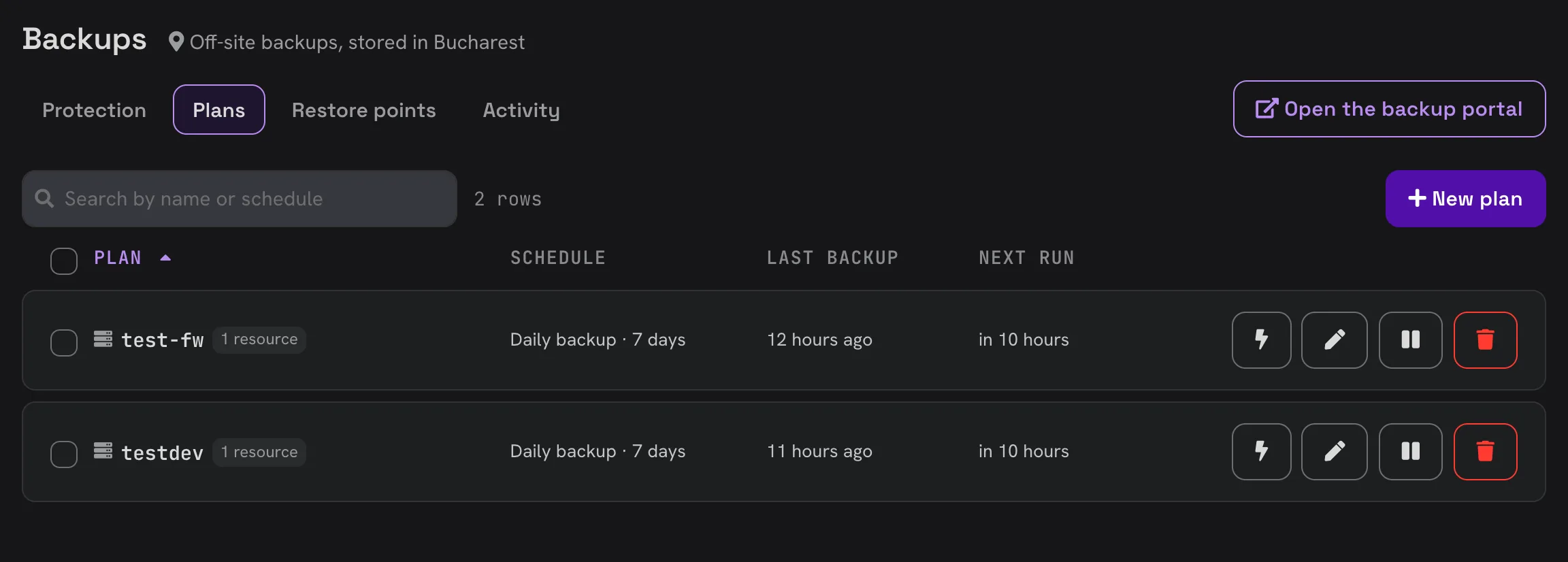
The buttons on each row are:
- Backup now (lightning icon): takes a backup of everything in the plan straight away, outside its schedule. It is kept and billed like any other backup.
- Edit: change the plan's name, resources or service level.
- Pause / Resume: a paused plan takes no backups until you resume it. Existing restore points are kept.
- Delete plan (bin icon): stops protecting the plan's resources. Existing restore points are kept until they expire or you delete them.
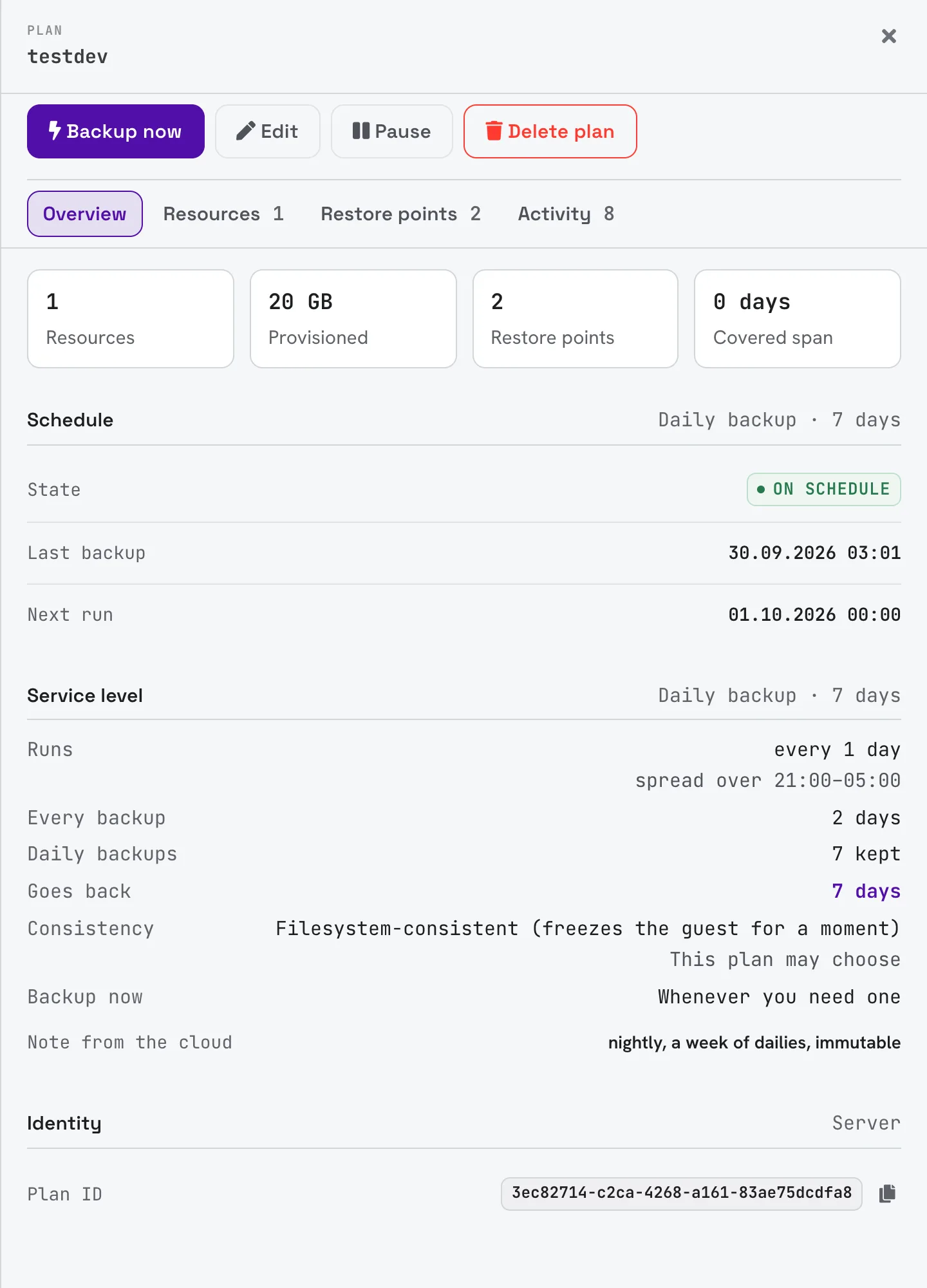
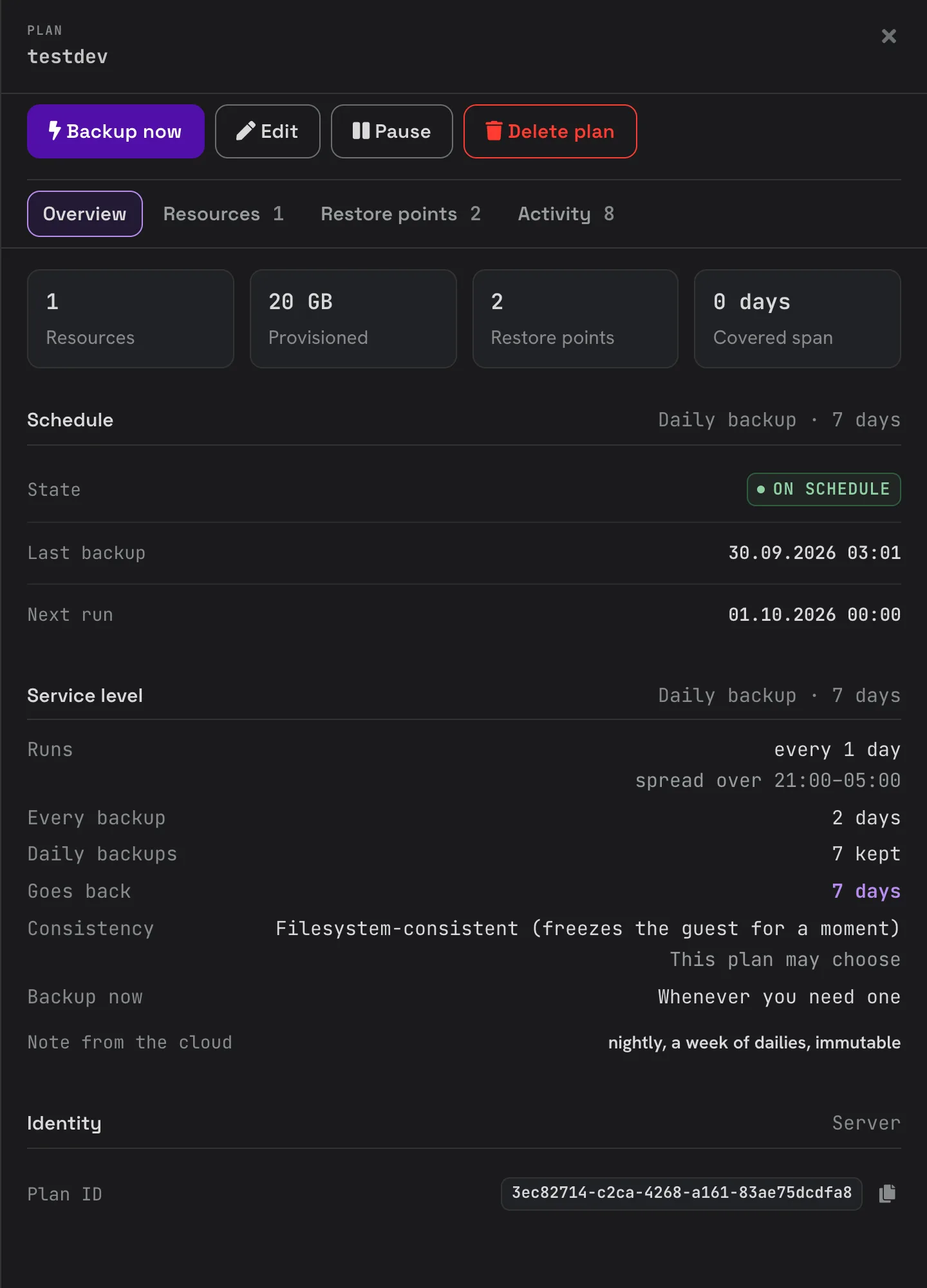
Tick several plans to pause or resume them together. Click a plan's name to see its details: its resources, restore points, activity and the full terms of its service level.
Enforced service levels
Some service levels are enforced. A plan on an enforced level cannot be paused, deleted or moved to another level, and the restore points it takes cannot be deleted before they expire. The controls for these actions are disabled on such plans.
Stop protecting a resource
To stop protecting a single resource, edit its plan and untick it, or delete the plan if it holds nothing else. Its restore points stay available until they expire or you delete them.