Restore from a backup
Every backup is a restore point: a copy of one resource at the moment the backup was taken. Restoring creates a new server, new volumes or a new bucket from it, or writes it back over the original.
Find a restore point
Open Backups › Restore points. You can also reach a resource's restore points from its backup page, or from the Restore points button on its Backups card.
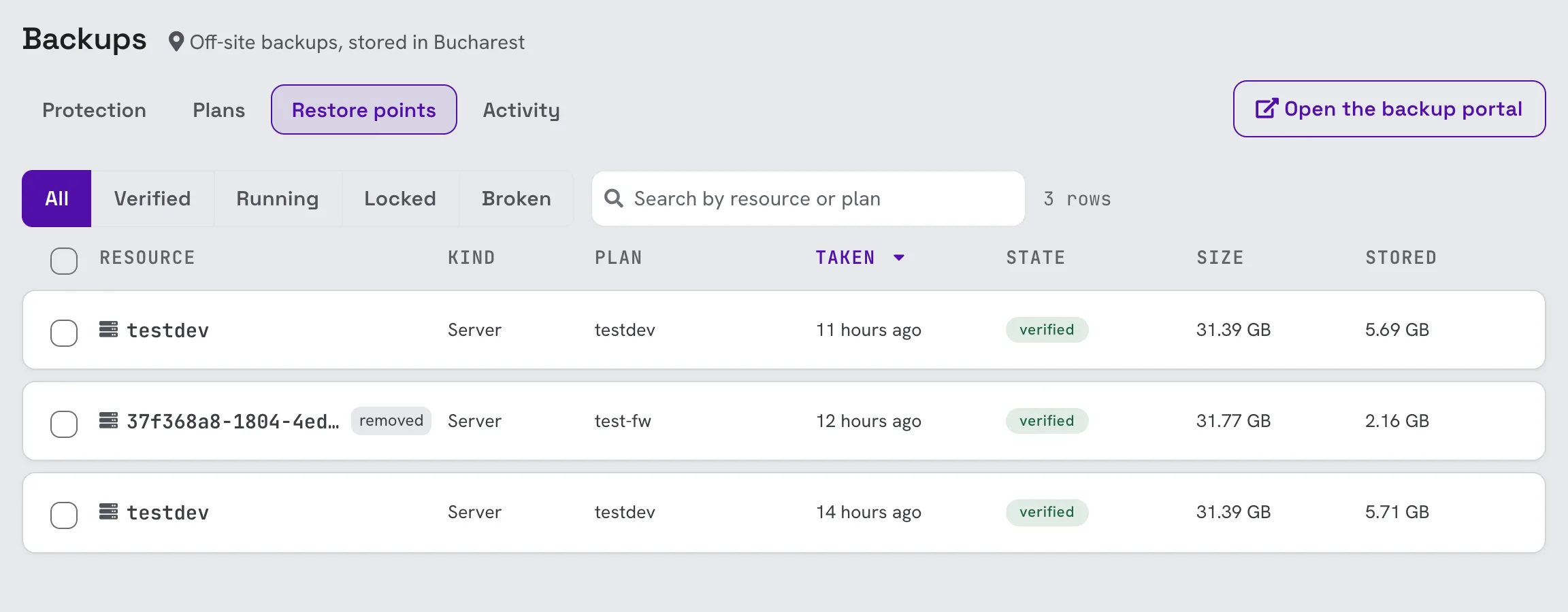
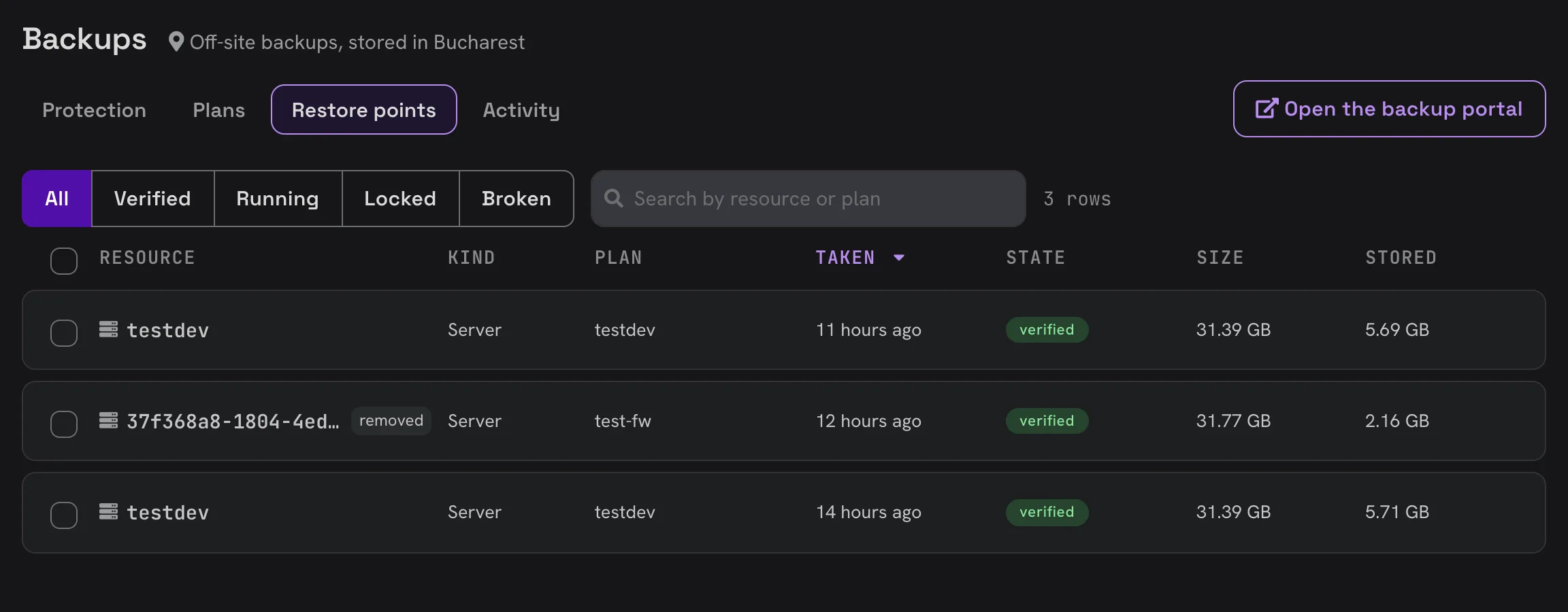
Each row shows the resource, its kind, the plan that took it, when it was taken, its state, its size and the space it takes in storage. Filter by state or search by resource or plan.
| State | Meaning |
|---|---|
| running | The backup is still being taken. |
| done | The backup completed. |
| verified | The backup completed and has since been checked to be readable. |
| locked | The backup is held and cannot be deleted right now. |
| expiring | The backup reached the end of its retention and is being removed. |
| broken | The backup cannot be restored from. |
Size is what was written on the disks when the backup was taken. Stored is the space this backup takes after compression. Backups share data with each other, so the Stored figures of several backups do not add up; the total the project stores is on the Protection tab.
A resource that was deleted from the project keeps its restore points until they expire or you delete them. It is marked removed, and you can still restore it.
Click a restore point to see its details: when it expires, whether it is locked, which plan took it and which disks it holds.
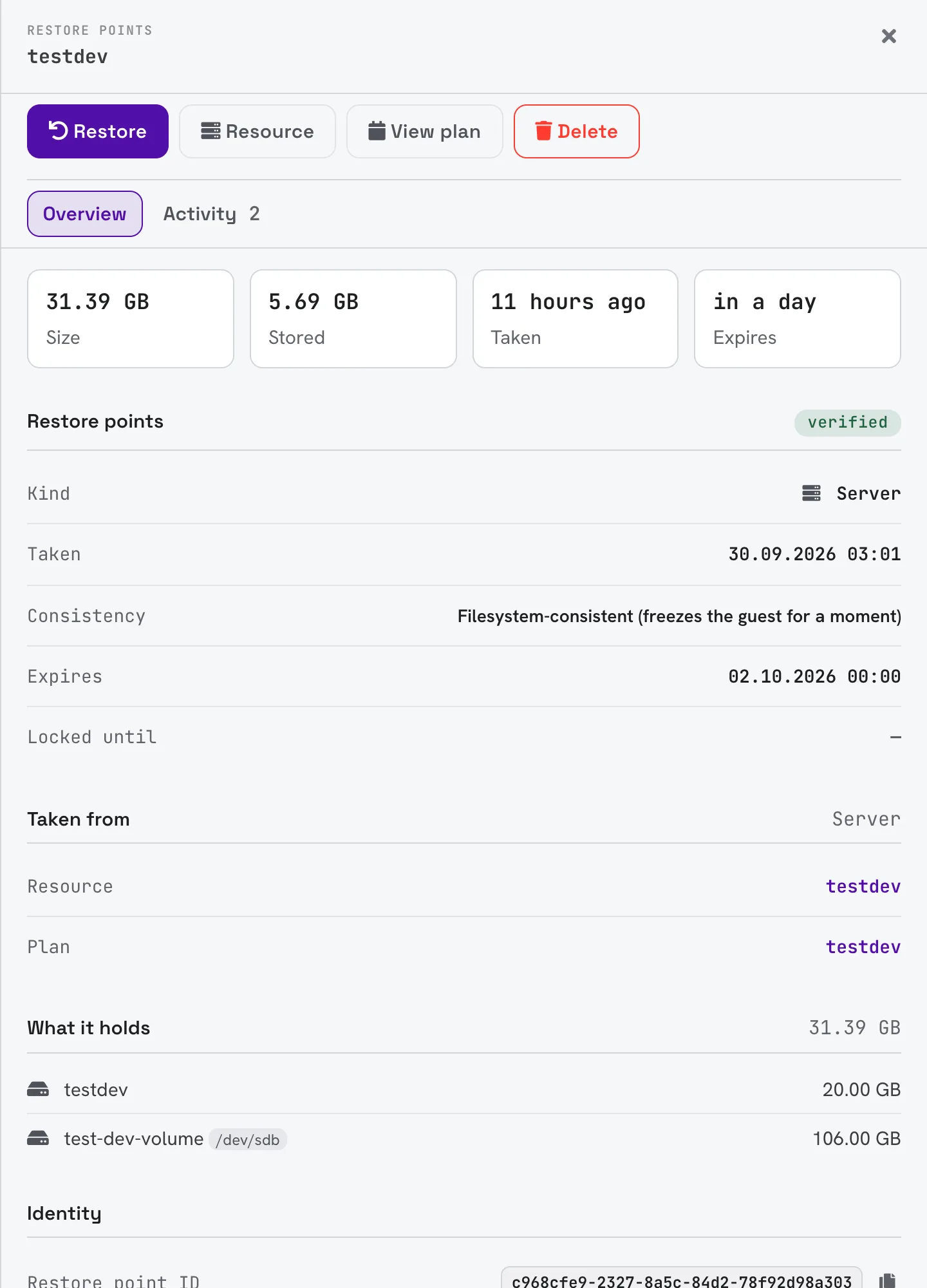
Restore
Click Restore in the restore point's details, then choose what the backup becomes.
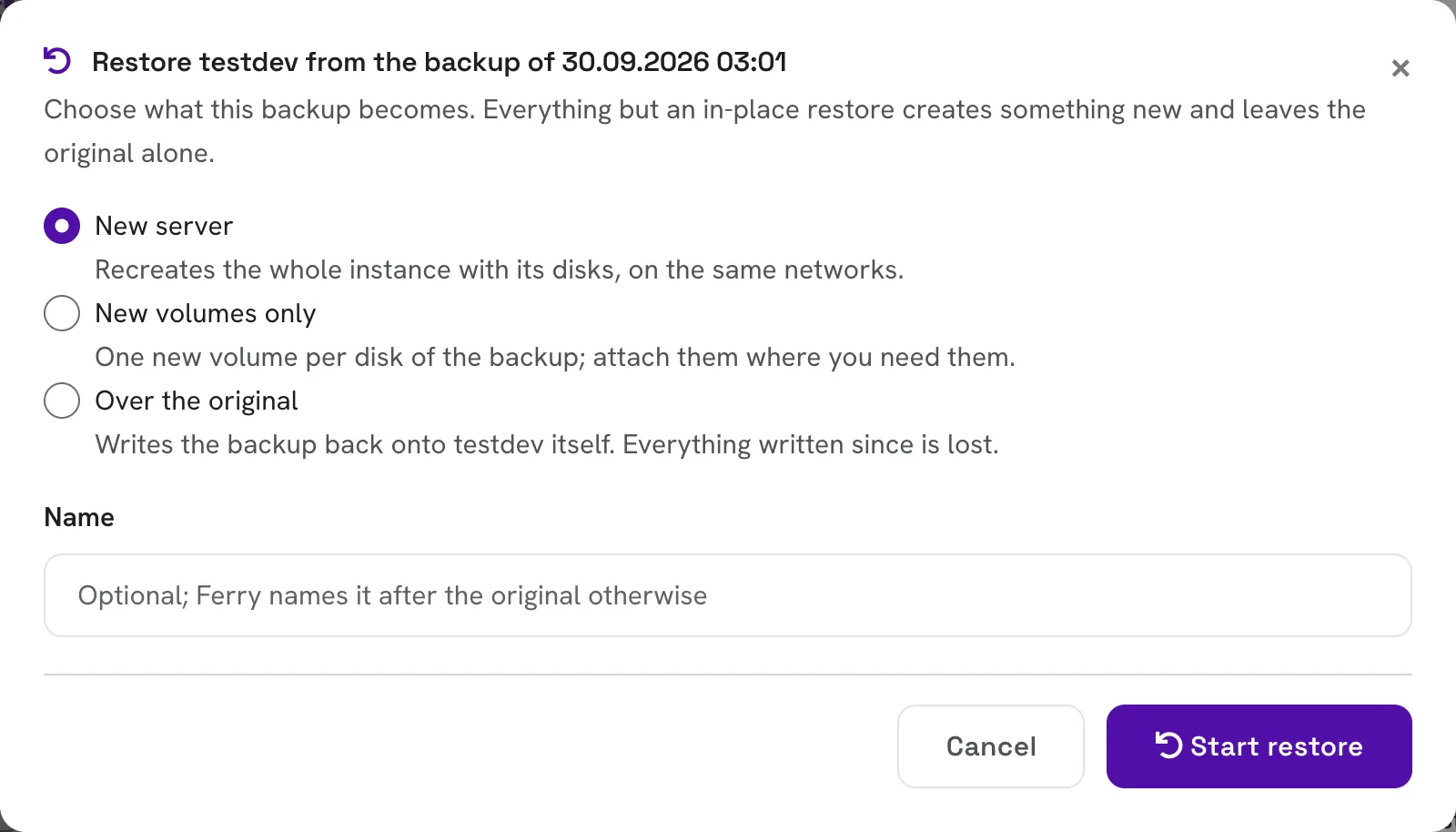
For a server backup:
- New server: recreates the whole server with its disks, on the same networks. The original is not touched.
- New volumes only: creates one new volume for each disk in the backup. Attach them wherever you need them.
- Over the original: writes the backup back onto the original server. See below.
For a volume backup, a new volume is created, or you can restore over the original volume. For a bucket backup, a new bucket is created and the bucket it came from is left alone.
Name is optional. Left empty, the new resource is named after the original.
Click Start restore. The dialog follows the restore until it finishes, and the new server, volumes or bucket appear in your lists once they are ready. Restores are also listed in Activity.
Restore over the original
Restoring over the original replaces the disks of the existing server or volume with the backup. Everything written since the backup was taken is lost, and no backup covers it. Prefer a new server or new volumes when you are not sure: you can copy what you need from them and delete them afterwards.
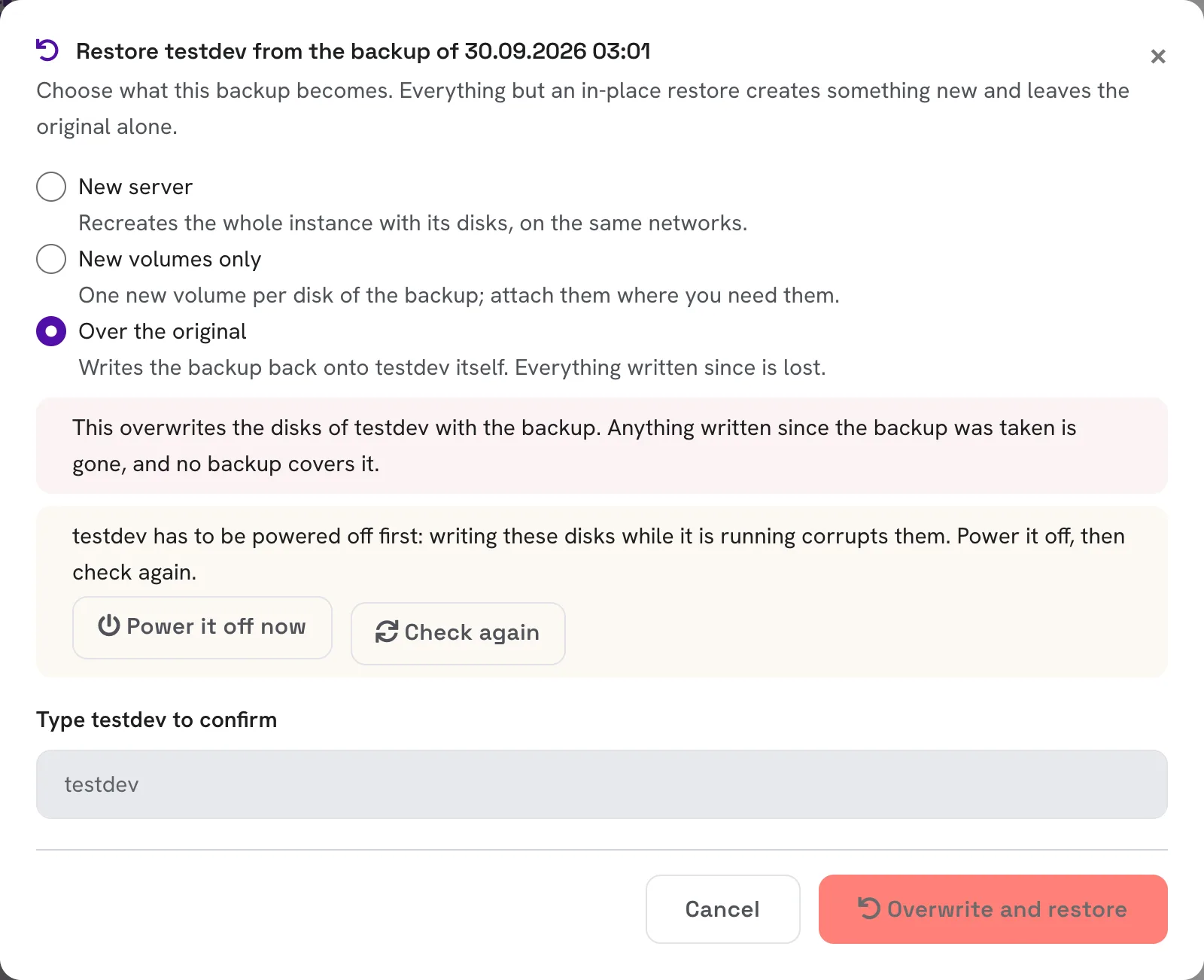
Before an in-place restore can start:
- The server must be powered off. Writing its disks while it runs would corrupt them. Click Power it off now, or shut it down yourself, then click Check again. For a volume, this applies to the server it is attached to.
- Type the name of the resource to confirm.
Then click Overwrite and restore.
Delete restore points
Delete a single restore point from its details, or tick several on the Restore points tab and delete them together. A deleted restore point cannot be recovered, and it stops being billed straight away.
Some restore points cannot be deleted before a date, and show a lock icon with that date:
- backups kept locked by their vault, which nobody, not even you, can delete before the lock ends;
- backups taken on an enforced service level, which are kept until they expire.
When you select several restore points, the ones that cannot be deleted yet are left out and counted separately.
A vault may also let you delete a backup it still holds locked. It then disappears from your list and stops being billed at once, and the vault erases it when the lock ends.