Floating IPs
Floating IPs are not the same as Additional IPs, and they have a different purpose and behaviour. While Additional IPs are attached directly to the instance, Floating IPs are configured at the router level and forward traffic to the private IP of an instance. They are public IPs used in cloud environments where machines have private-only IPs.
Requirements
- an instance with a private IP
- a router with an external gateway attached to it
- the private network added as an interface to the router
1. Create an instance in the private network
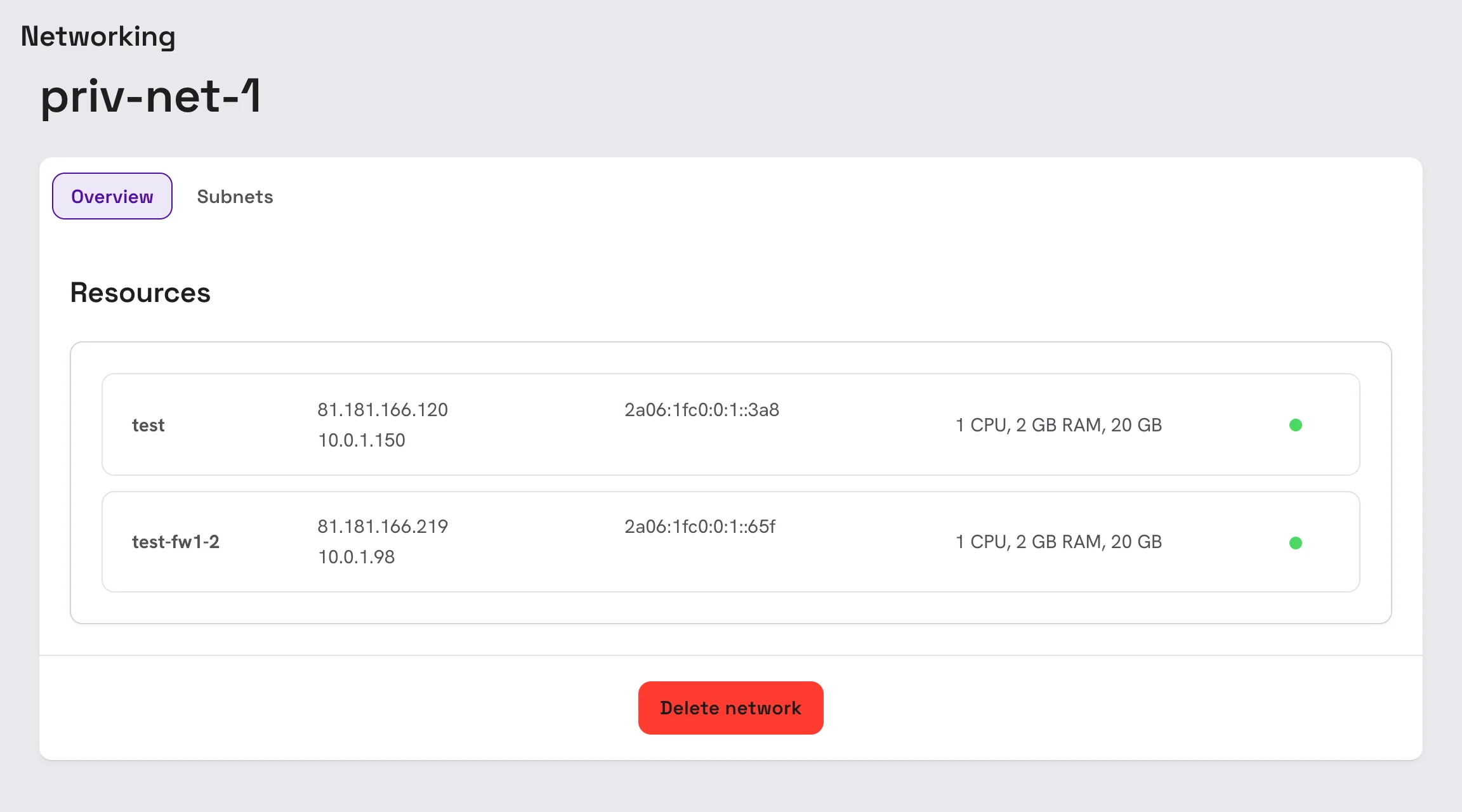
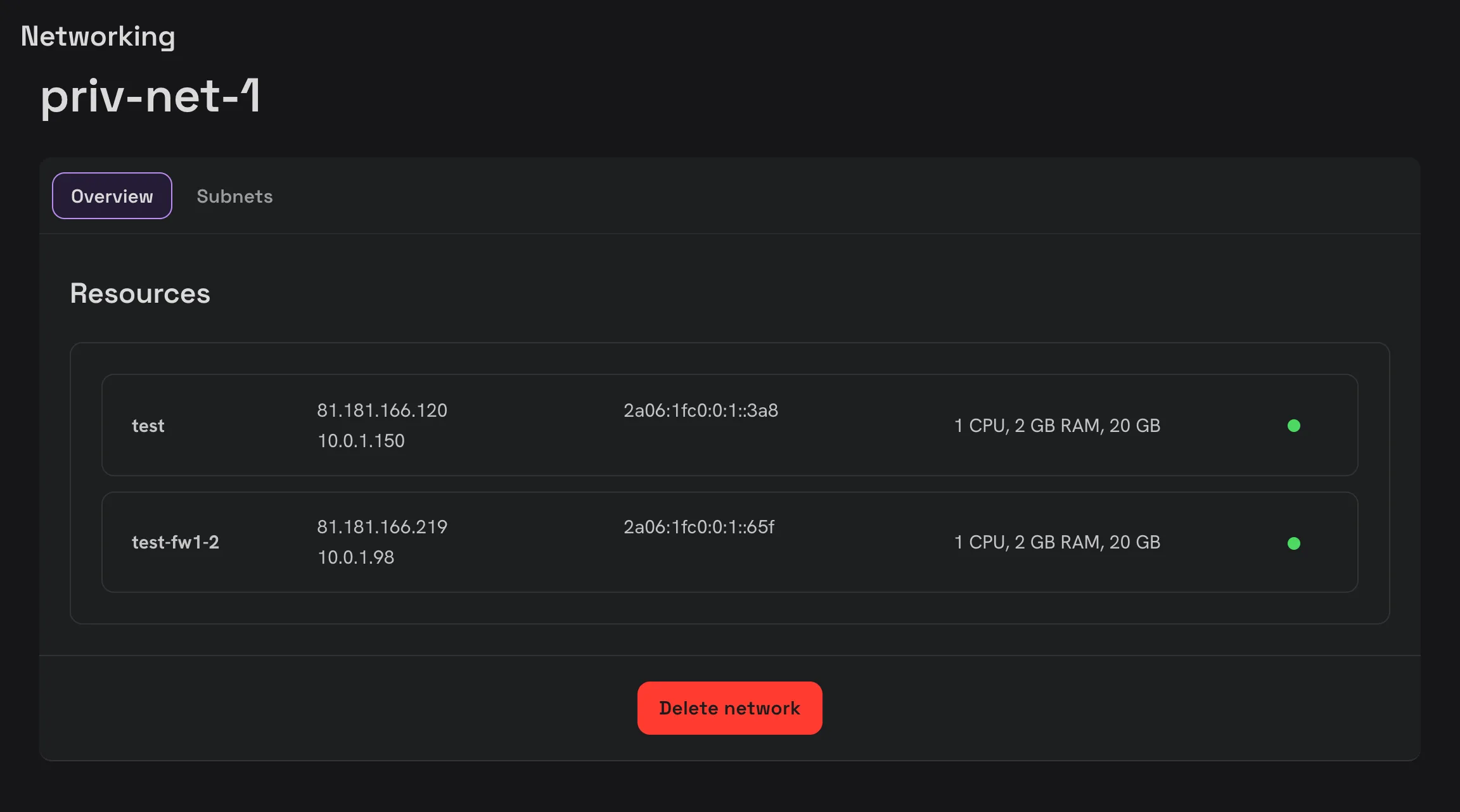
Follow the tutorial for creating an instance in a private network. Once you have created the network, open it from Networking › Networks to see the instances connected to it and their private IPs.
2. Create a router with an external gateway
Floating IPs are assigned in virtual routers, so you need a router that is connected both to our public network and to your private network. That means
- the router must have an external gateway in our public network
- the router must have an interface in your private network
Create a router
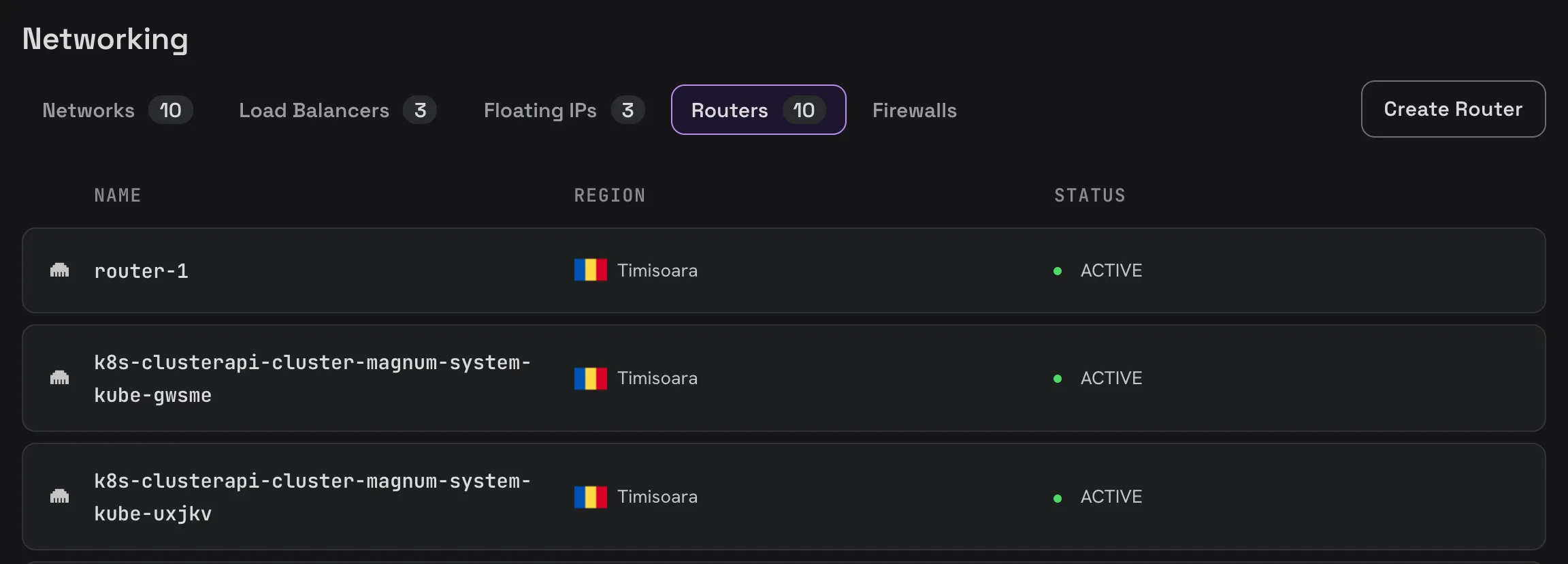
Open Networking › Routers and click Create Router.
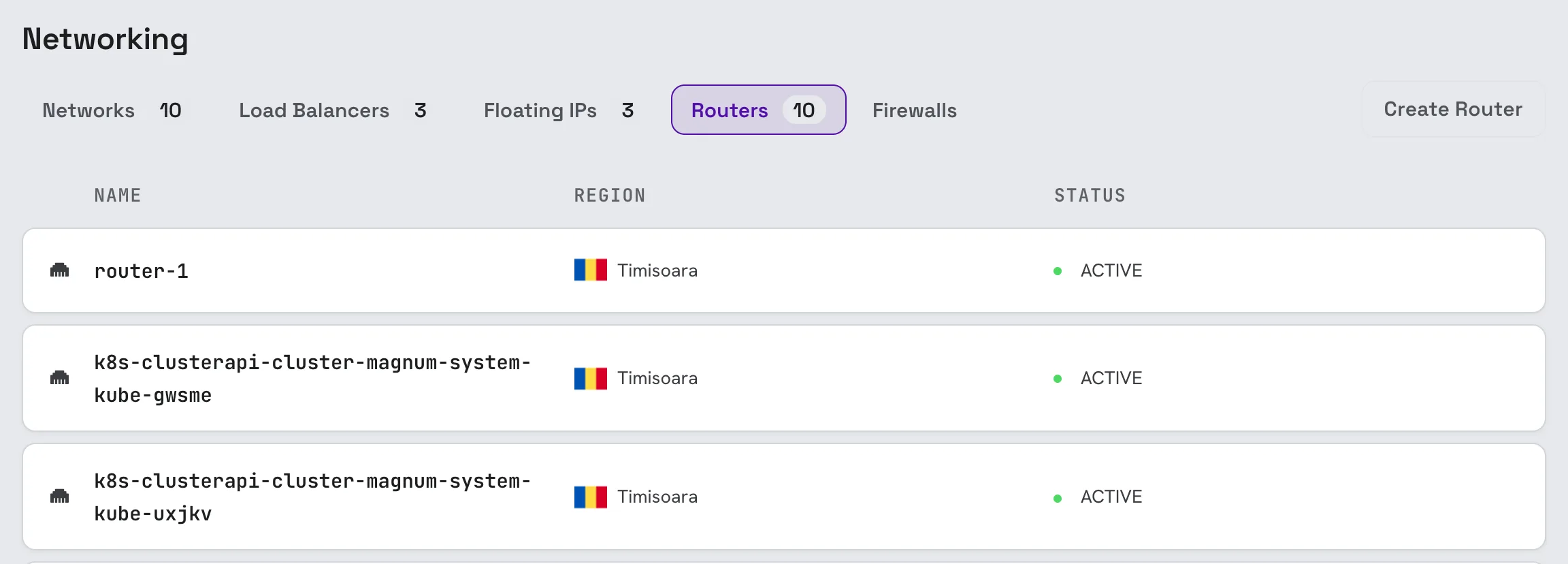
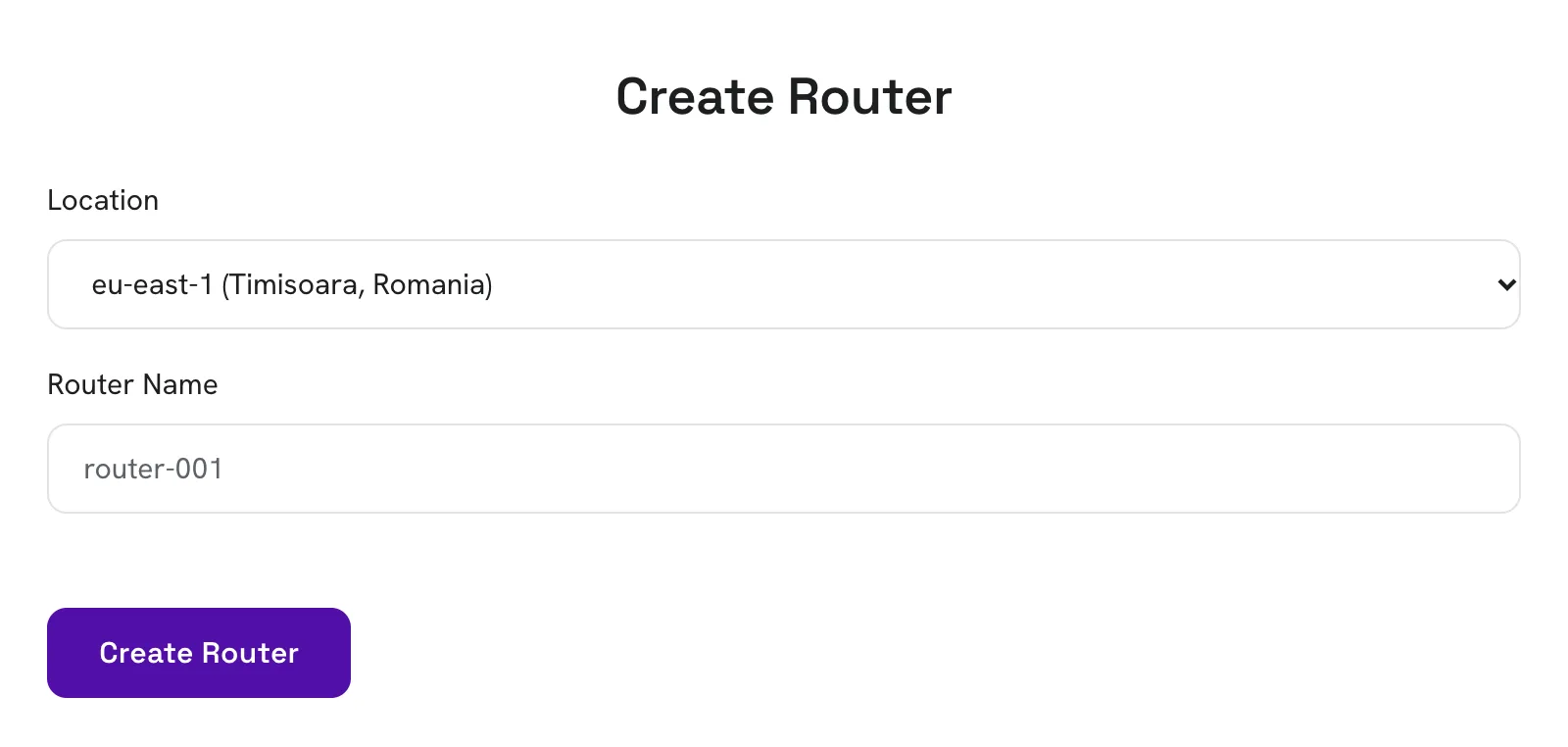
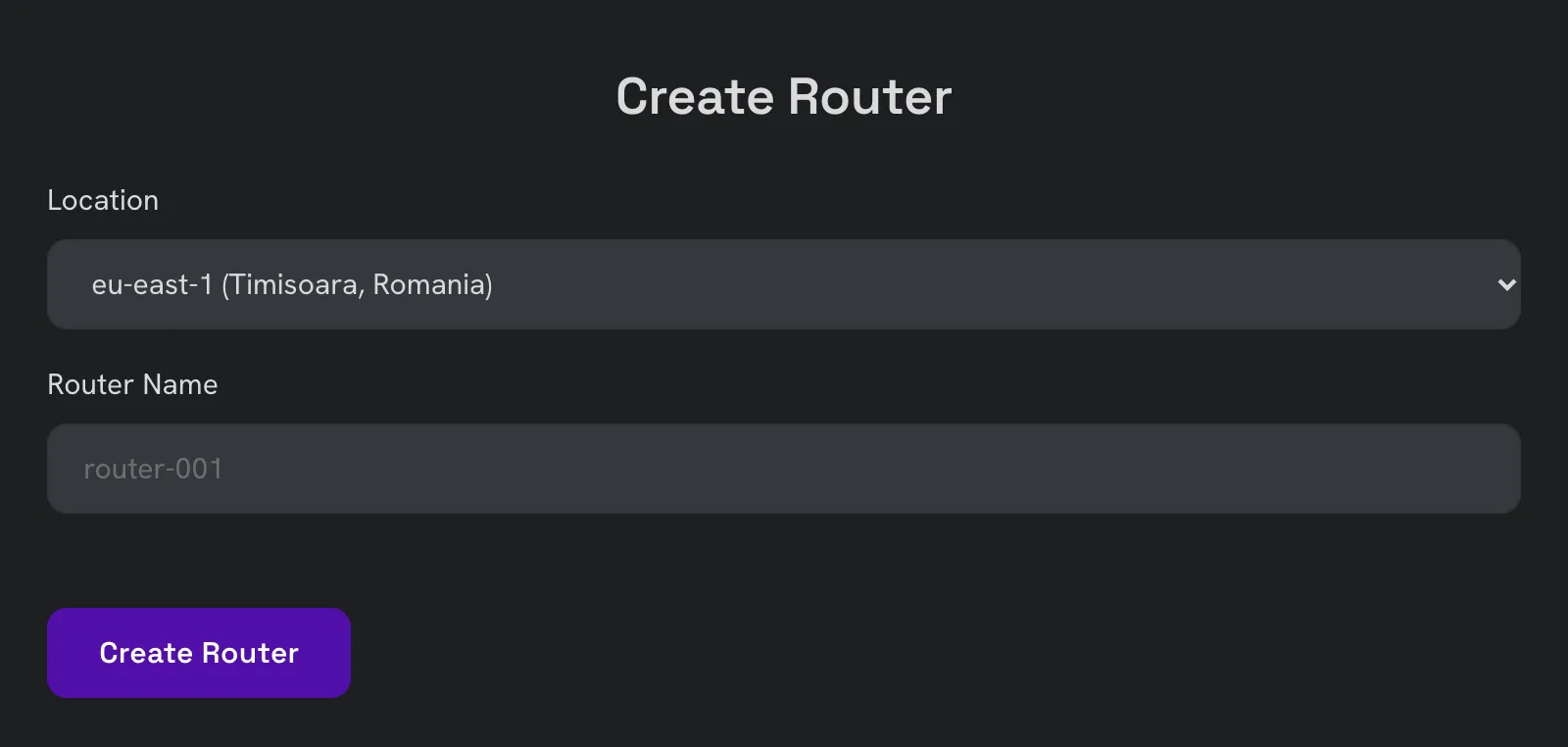
Choose the location and give your router a name, then click Create Router.
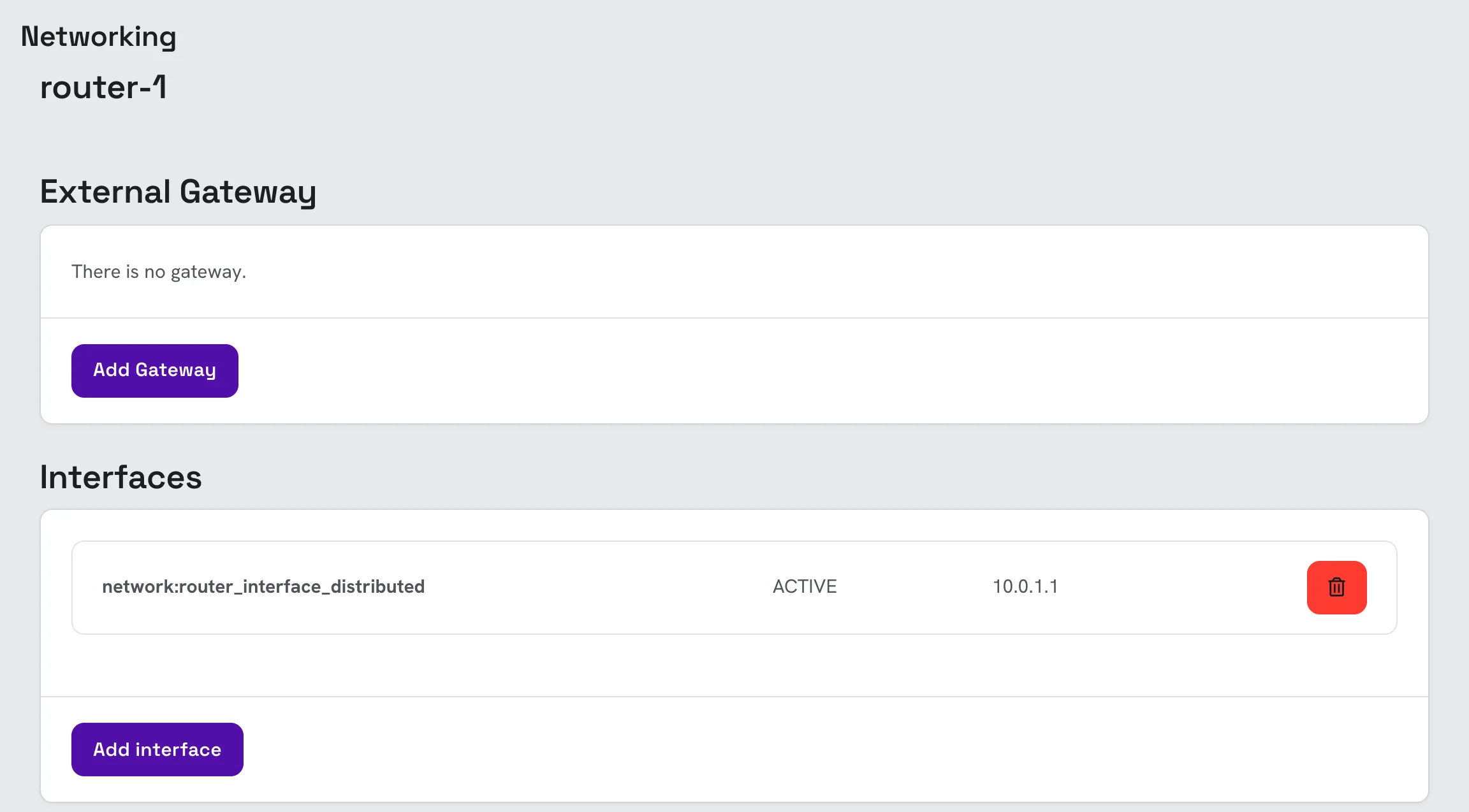
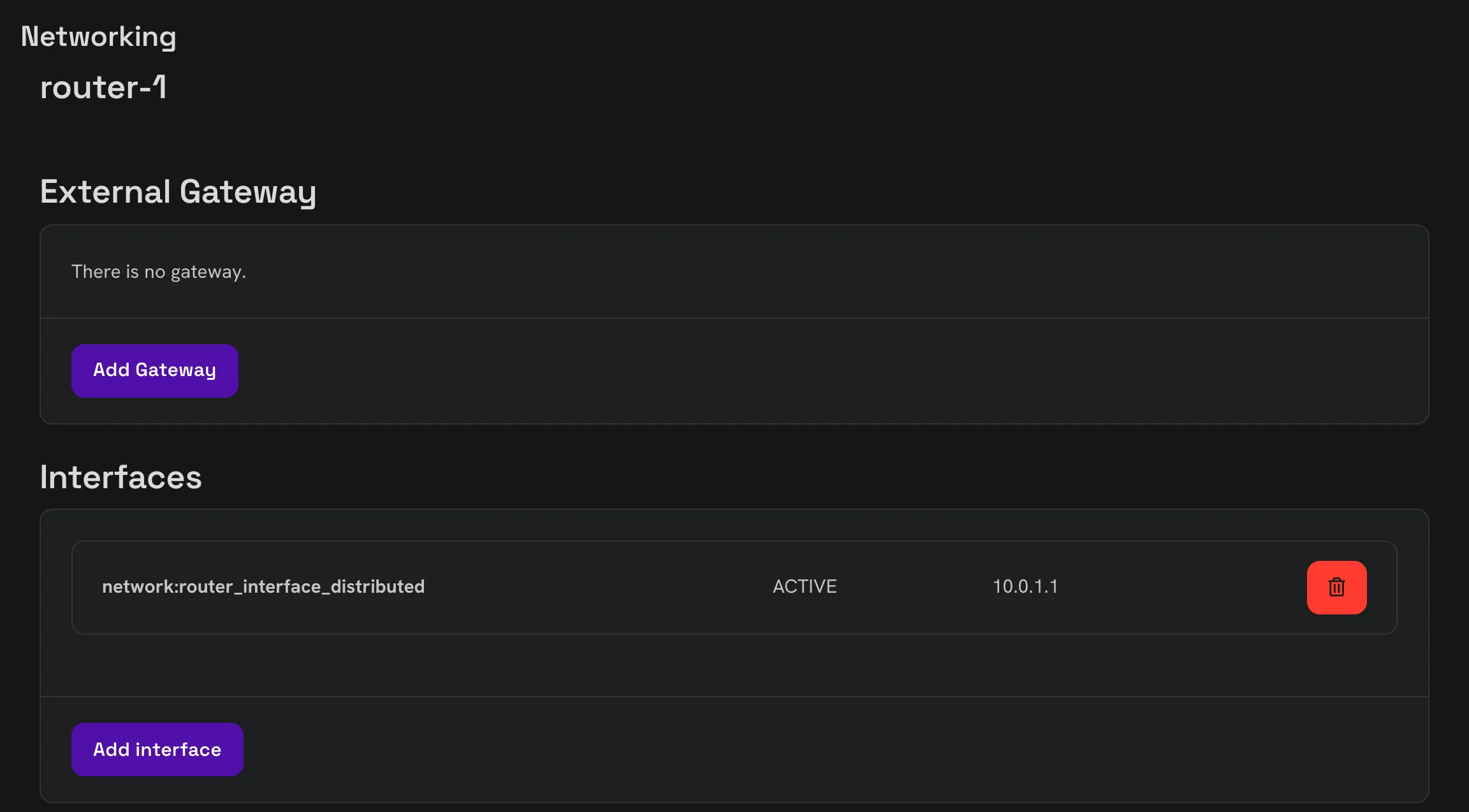
Click the new router to open it. A new router has no external gateway yet, so next you add the gateway and the interface.
Add the external gateway
Under External Gateway, click Add Gateway and choose the public network as the external network.


Add the router interface
The router needs an interface in your private network to forward traffic between the floating IP and the private IP. Under Interfaces, click Add interface and choose your private network's subnet.


3. Attach a floating IP to the instance
Open your server, go to its Networking tab and find the Floating IPs card at the bottom of the page.
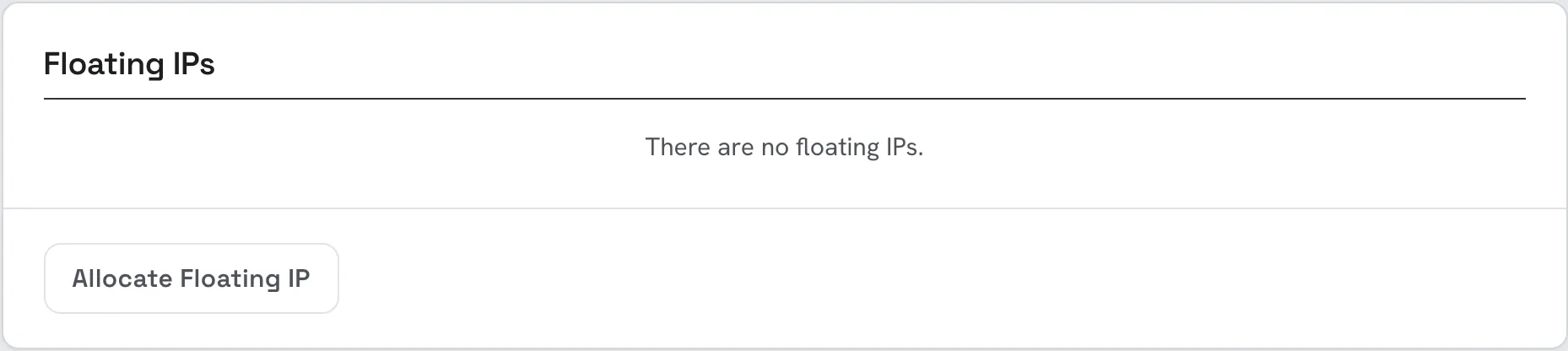
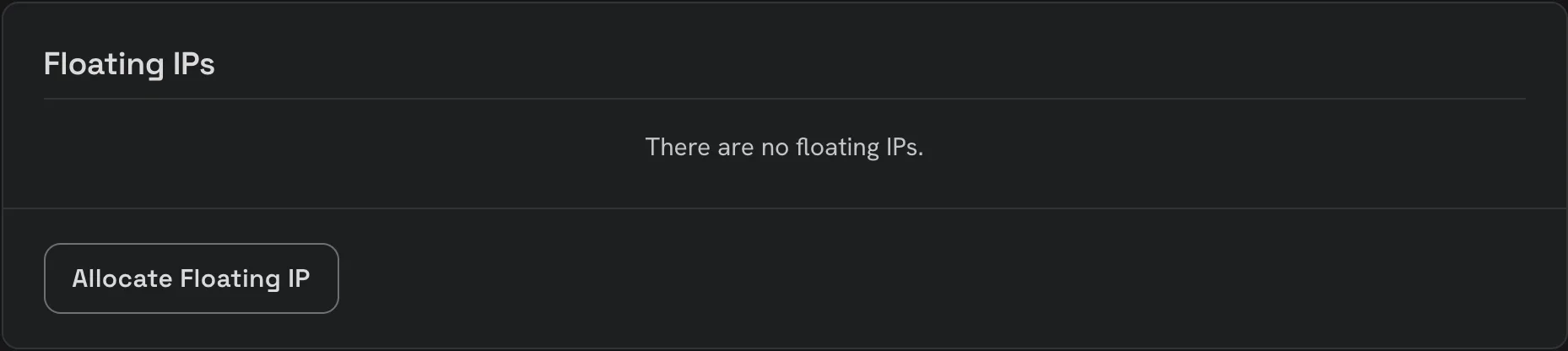
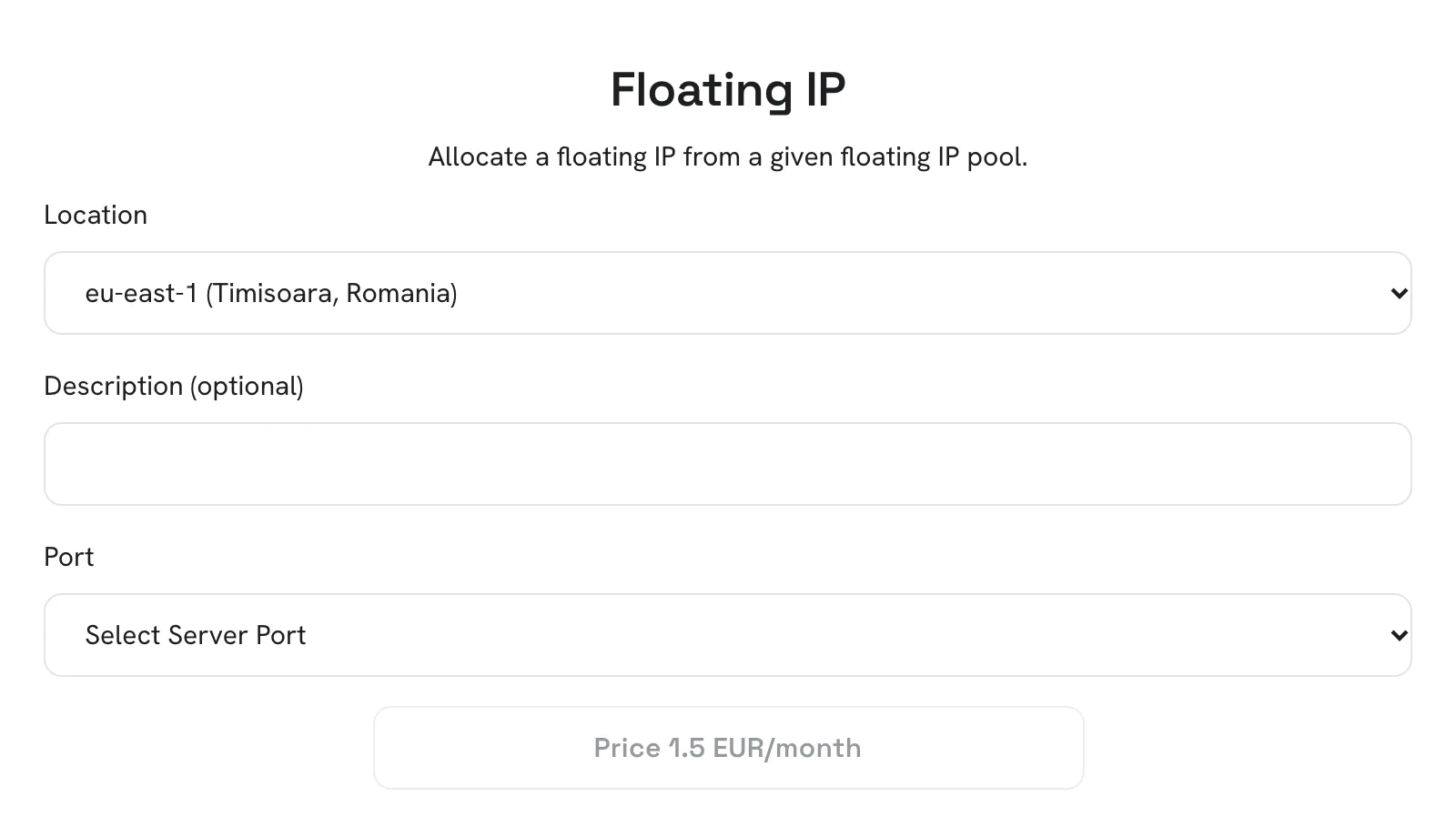
Click Allocate Floating IP. Choose the location, add a description if you like, and under Port pick the server's private interface. The button at the bottom shows the monthly price; click it to allocate the IP and attach it to your server.
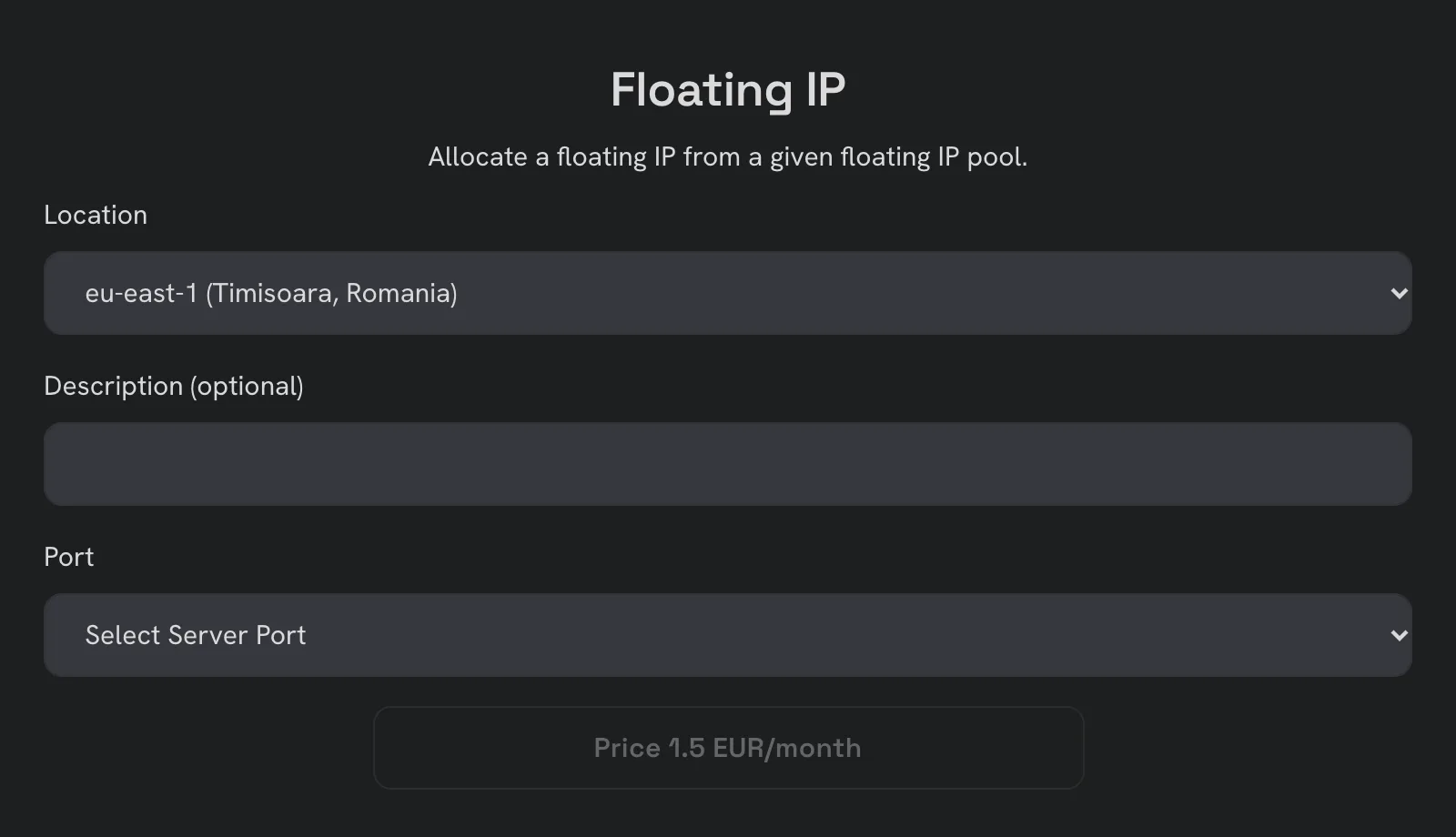
The new floating IP then shows in the server's Floating IPs card.
All the floating IPs of your project are also listed under Networking › Floating IPs. There you can allocate a floating IP without attaching it, attach one to a server with Associate, detach it with Disassociate, or release it.
4. Verify the operation
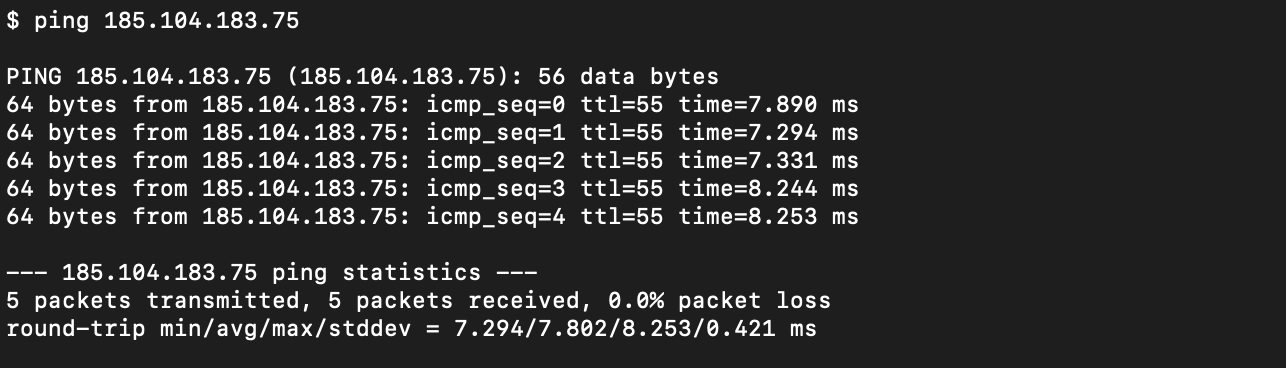
Let's verify that we can ping our newly allocated Floating IP.